Edit text in an image and keep the font
Fix a misspelled word on an AI banner, menu or sign without regenerating the picture. Draw a box around the text, type the new wording, and the same font, color and perspective come back.
- Nothing to install
Edit text in a picture, before and after
Drag the divider to compare.
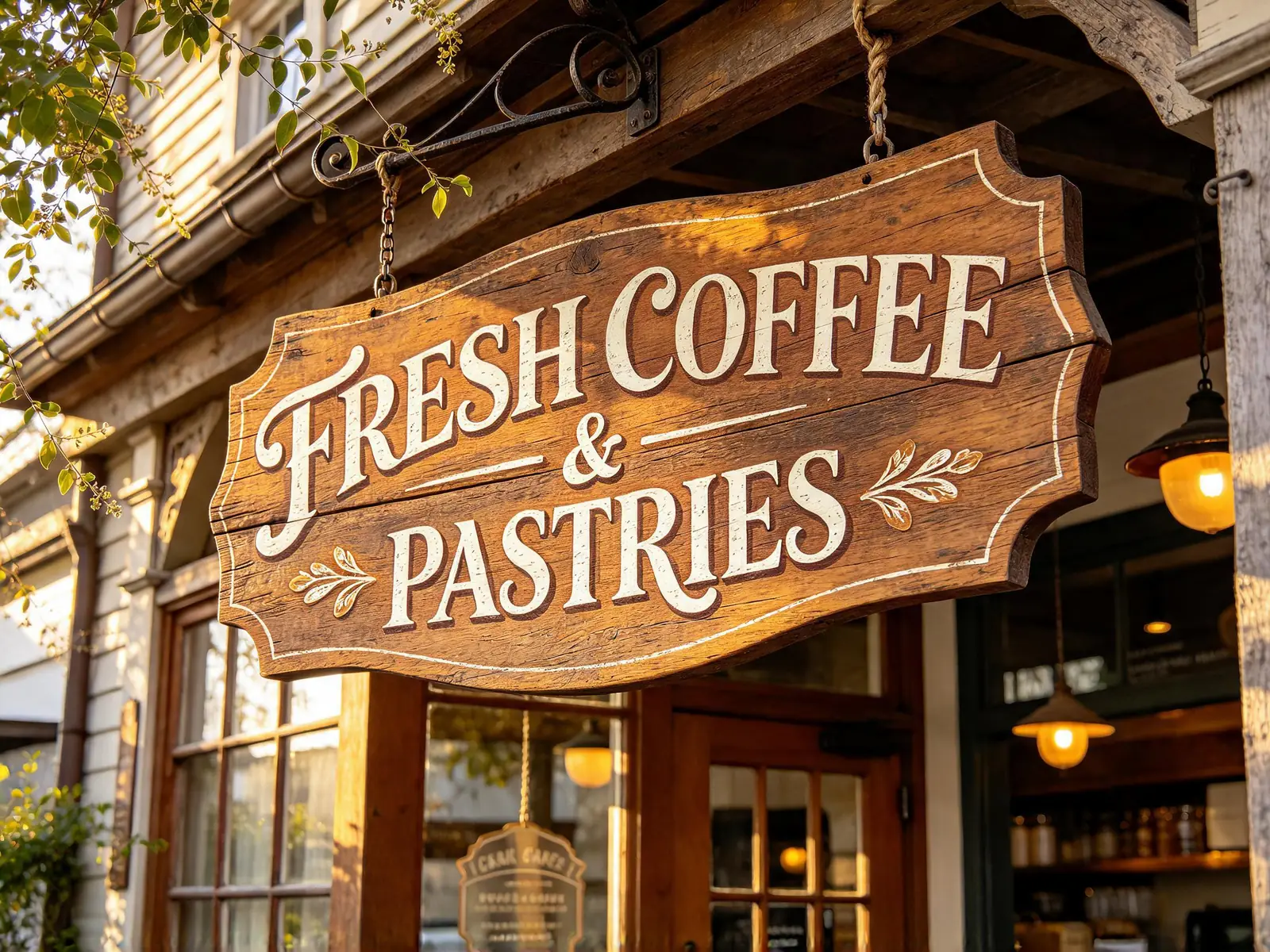
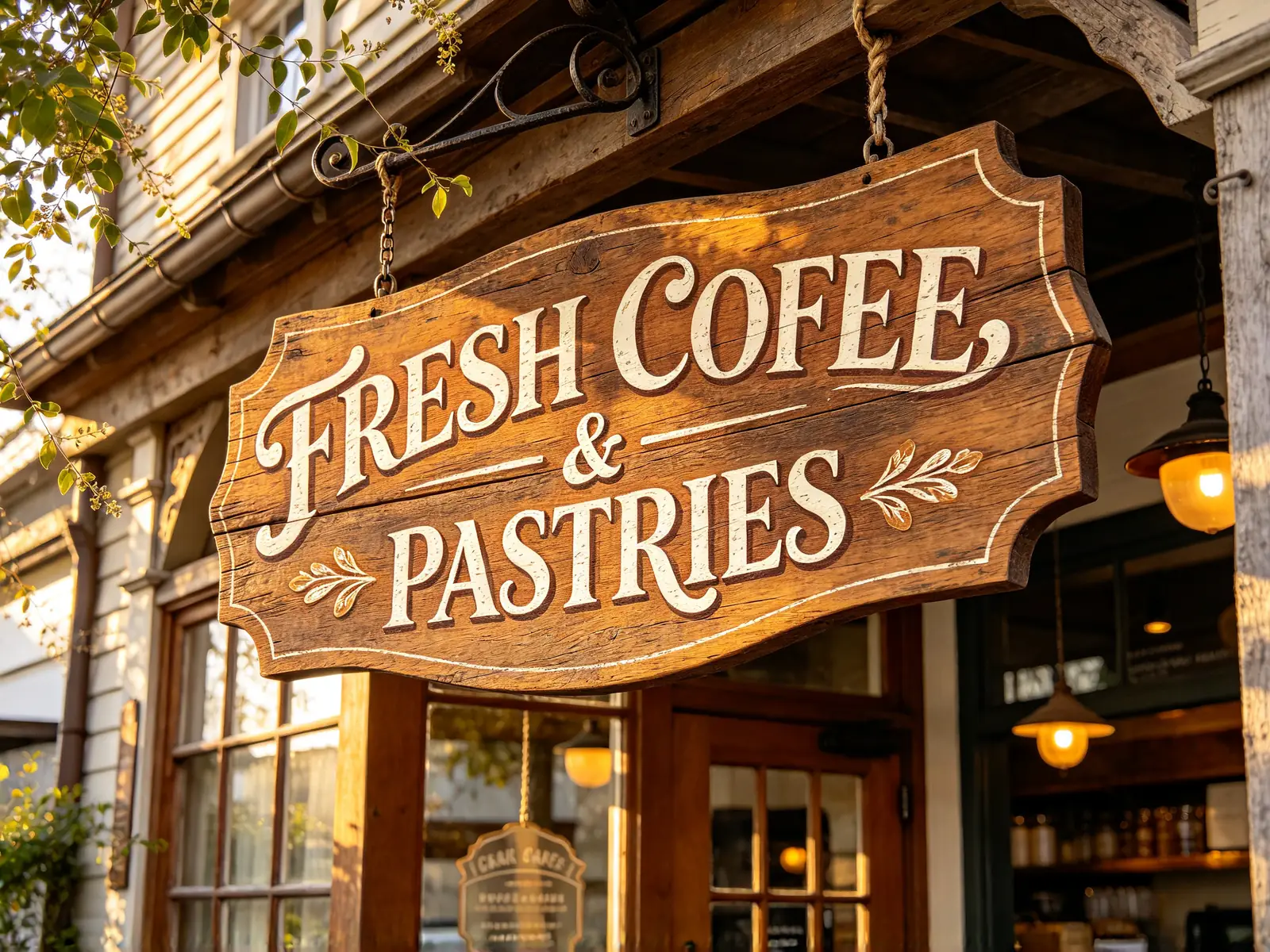
Fix a misspelled word on a shop sign
COFEE on a wooden café sign corrected to COFFEE, with the painted cream serif letters and wood grain kept
Prompt COFFEE
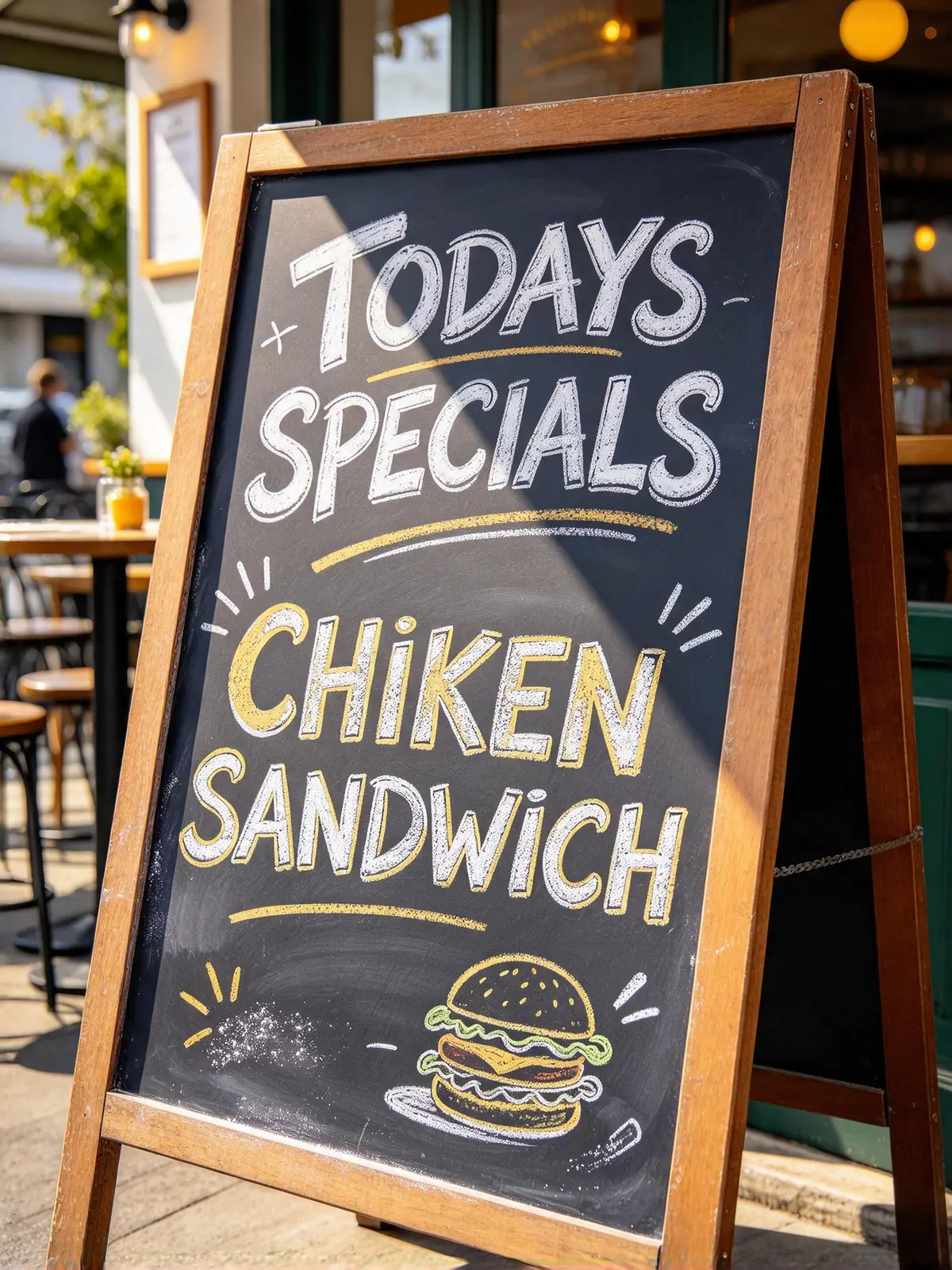
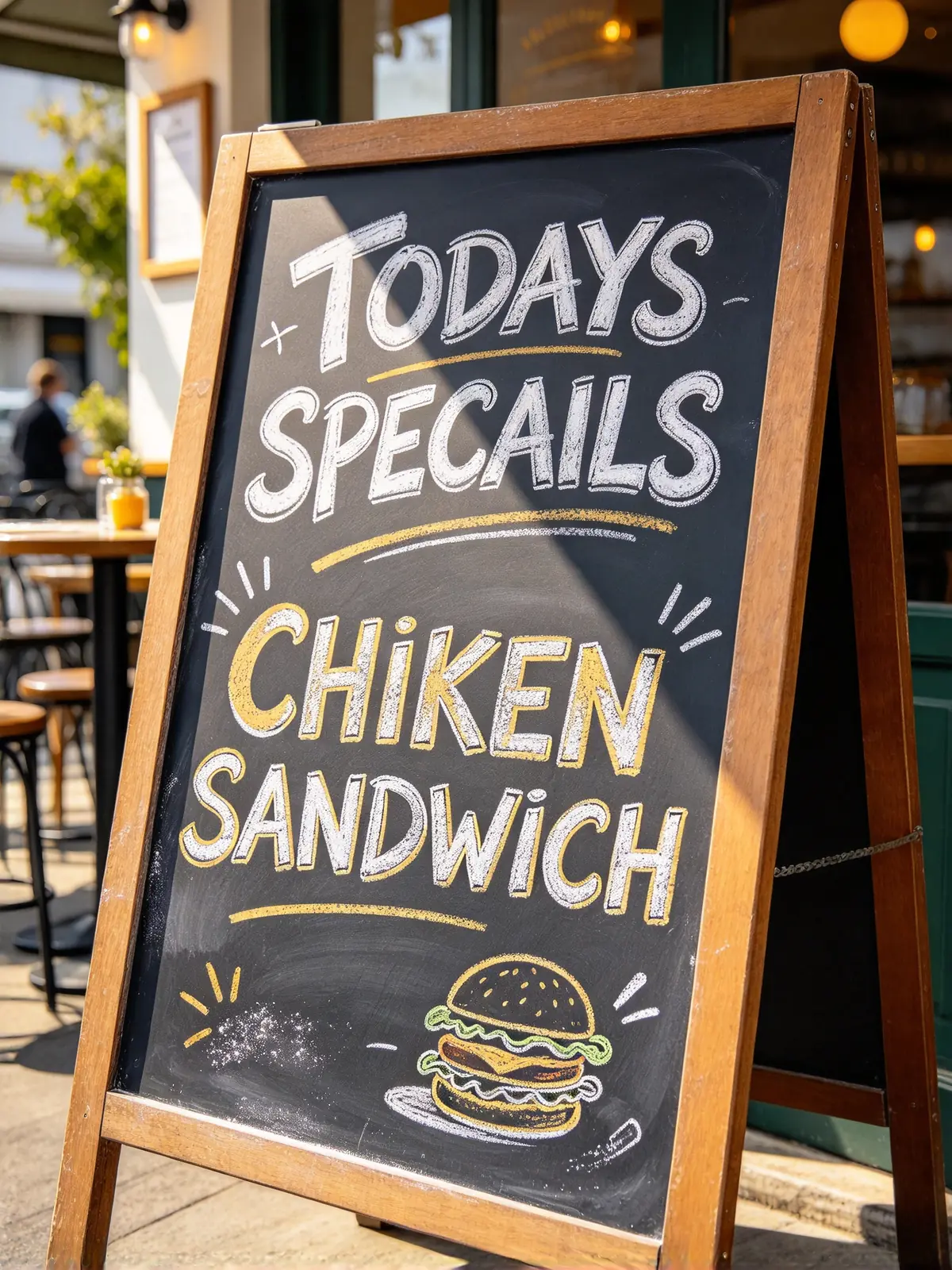
Correct a typo on a chalkboard menu
SPECAILS on an A-frame chalkboard menu corrected to SPECIALS, with the chalk lettering kept
Prompt SPECIALS
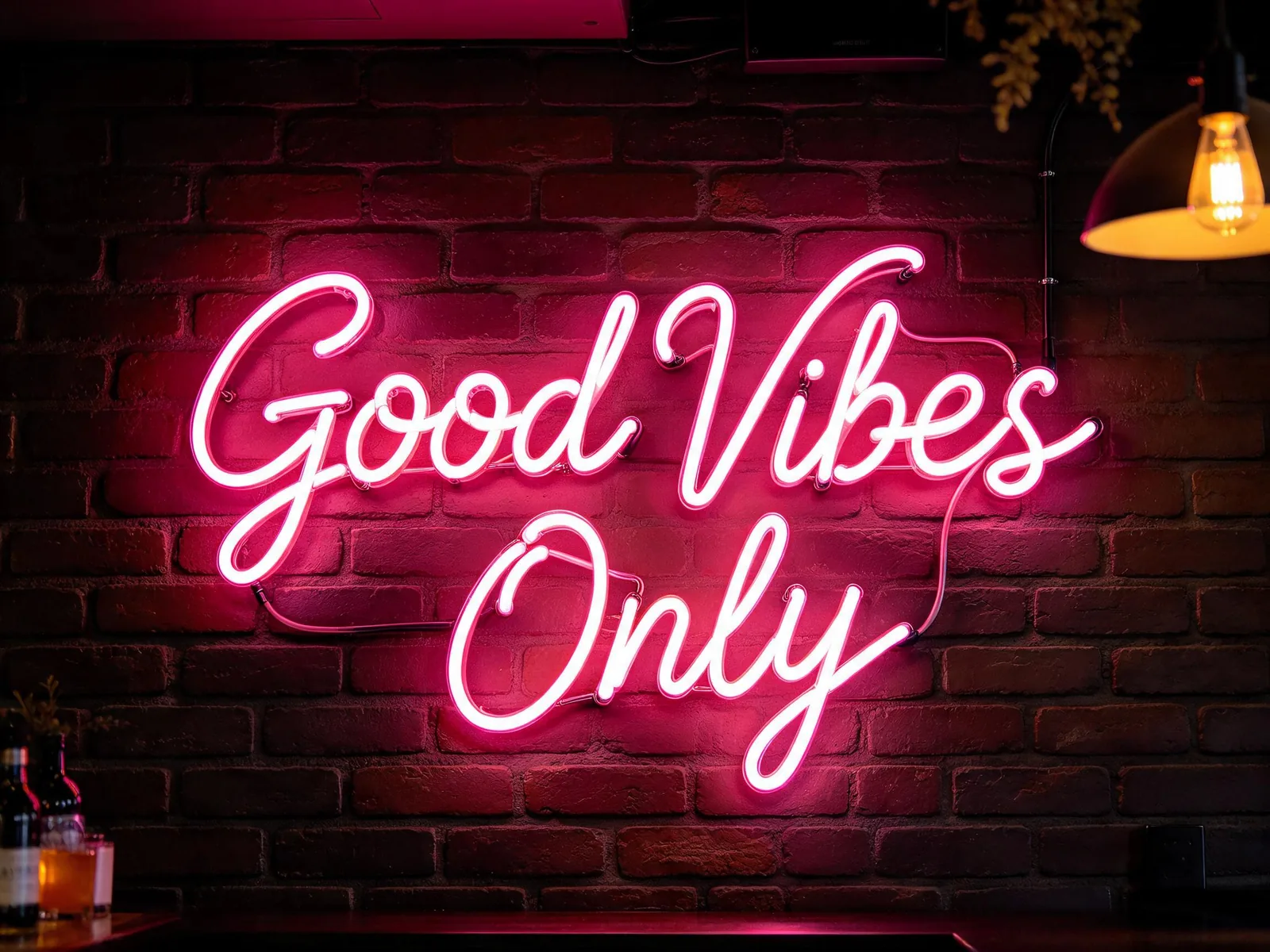
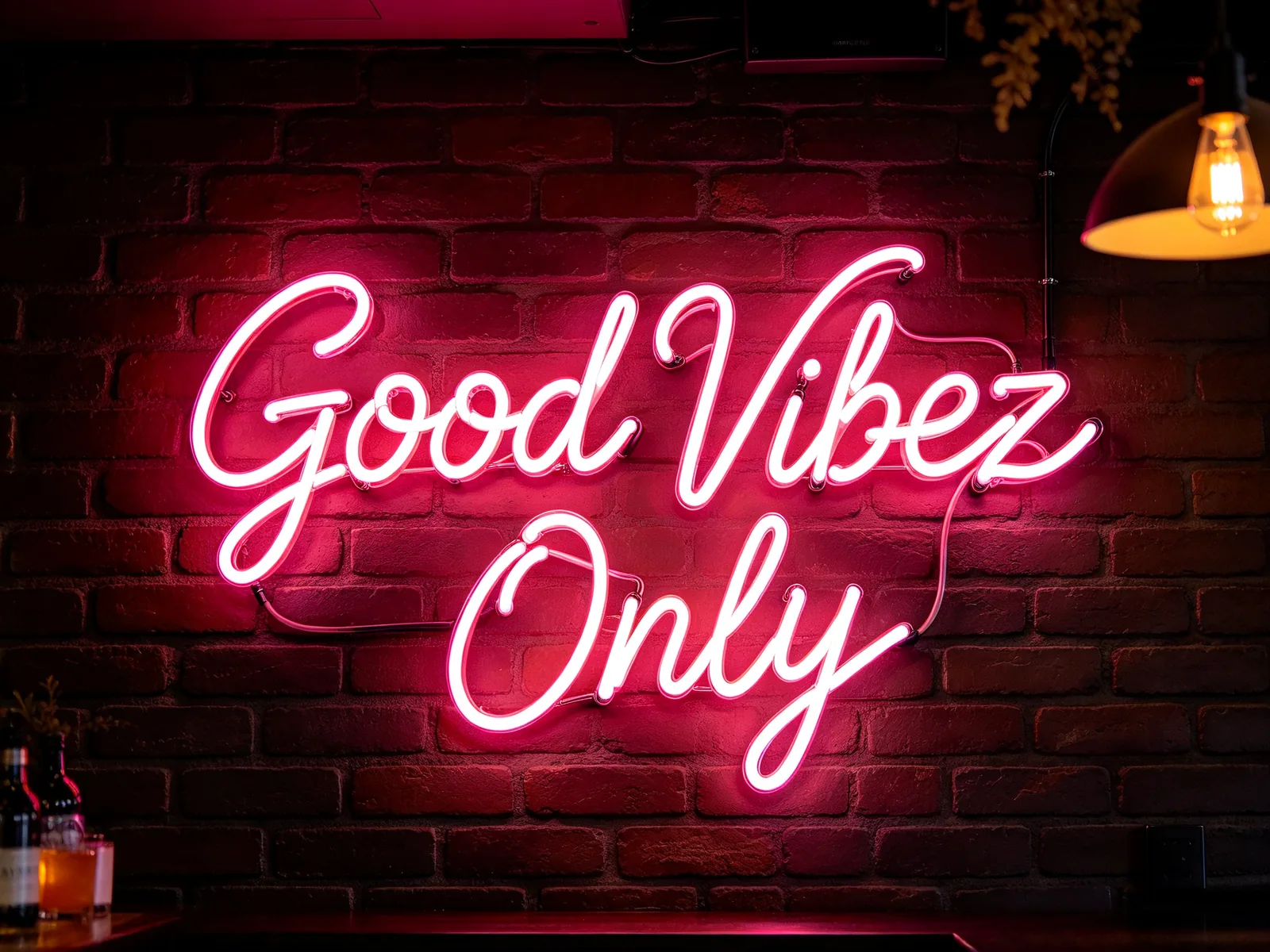
Change a word in a neon sign photo
Vibez on a pink cursive neon sign changed to Vibes, with the glow and tube style kept on the brick wall
Prompt Vibes
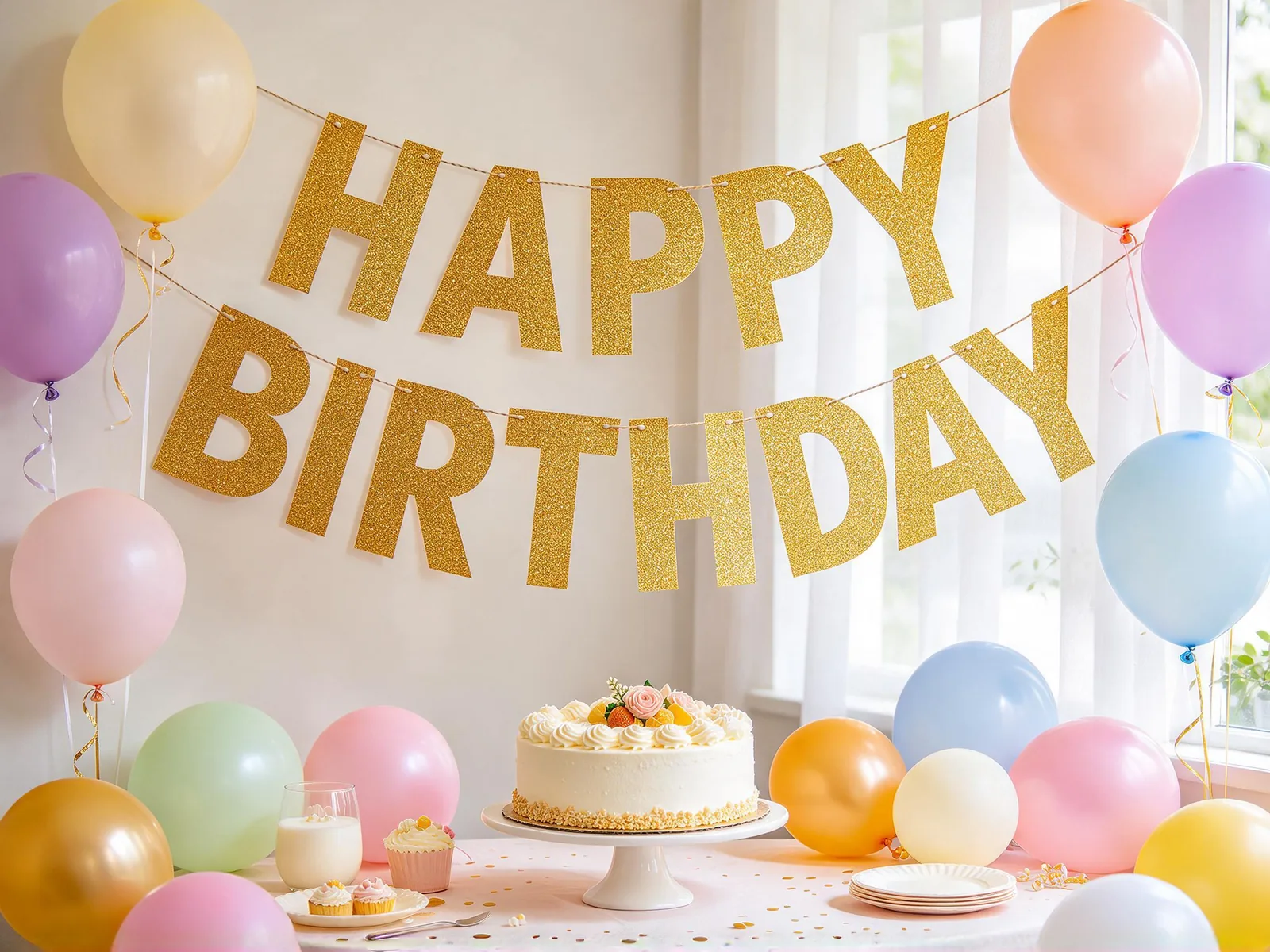
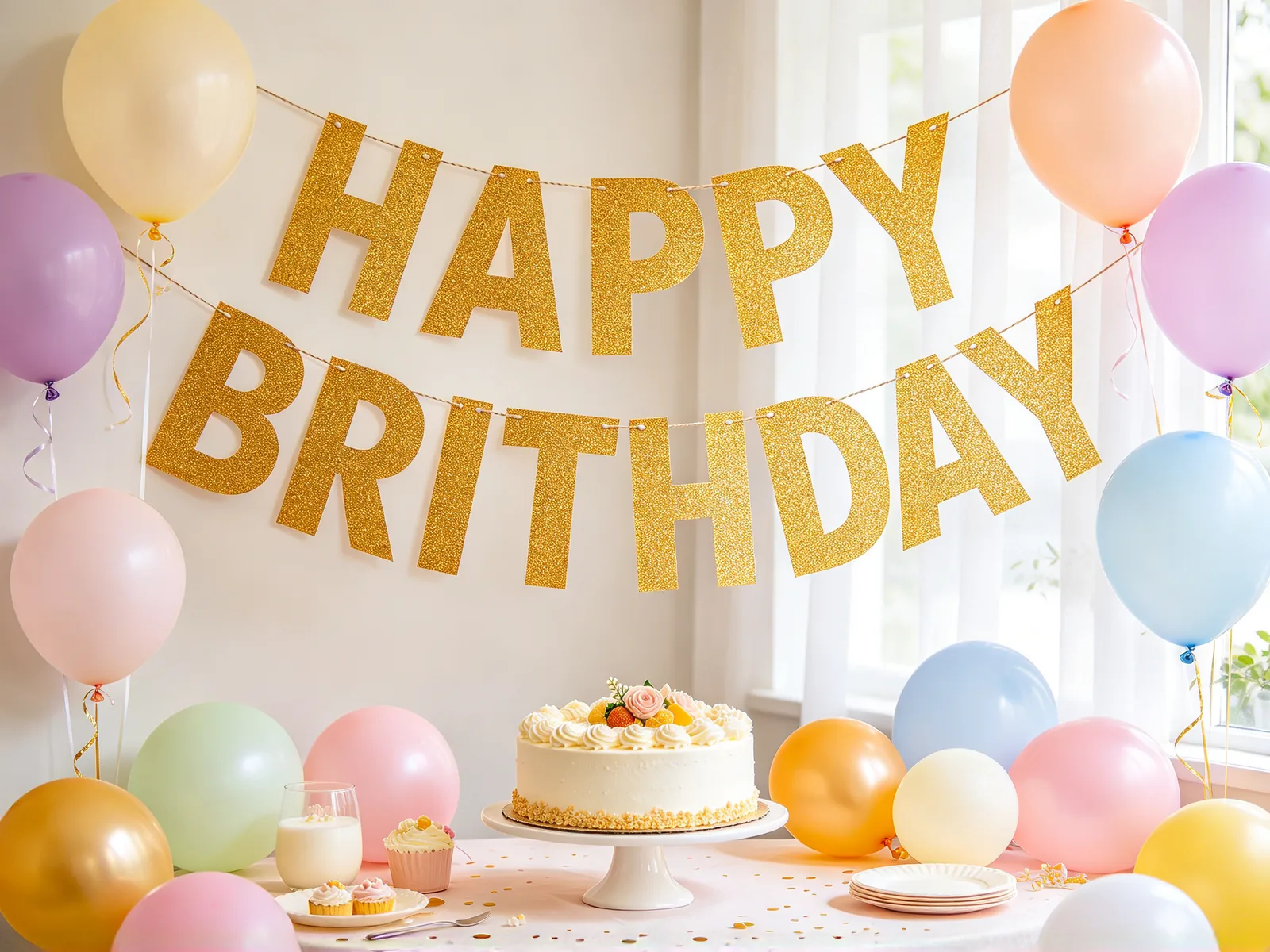
Fix the spelling on a party banner
BRITHDAY on a gold glitter letter banner corrected to BIRTHDAY, with the glitter and angle kept
Prompt BIRTHDAY
How to edit text in an image
- 1
Upload the image
Add a JPG, PNG or WebP with the wrong text on it: an AI banner, a menu, a sign or a screenshot.
- 2
Draw a box around the text
Drag one box around the word or line to change, including its outline and shadow.
- 3
Type what it should say
Enter the exact spelling and capitalization, up to 60 characters.
- 4
Fix and download
Run it, compare with the original, then save. Choose Fix another word on the result to correct the next one.
Edit text on an image: who it helps
Typos survive in AI images, printed signs and old design files. Here is who fixes them with this tool.
AI image creators
Keep the composition you like and fix only the lettering.
- Correct a misspelled word in a banner
- Fix a garbled headline on a poster
- Skip regenerating the whole image
Marketers and online sellers
Update the wording on a creative you already have.
- Change a word in a sale banner
- Edit text in a screenshot for a deck
- Fix a product label before launch
Small businesses
Fix a menu, sign or flyer when the source file is gone.
- Correct a typo on a menu photo
- Update a word on a shop sign photo
- Fix a flyer you only have as an image
Edit text in image with the same font
The new letters are drawn to match the old ones, so the edit reads as part of the picture.
- Font style, weight and size follow the original letters.
- Color, outline, glow and drop shadow carry over.
- Perspective and surface texture, such as wood grain or chalk, are kept.
- Everything outside the box is kept as close to the original as possible.
- Heavily stylized lettering can drift a little, so compare before you publish.
- The result is redrawn pixels, not an editable font file.
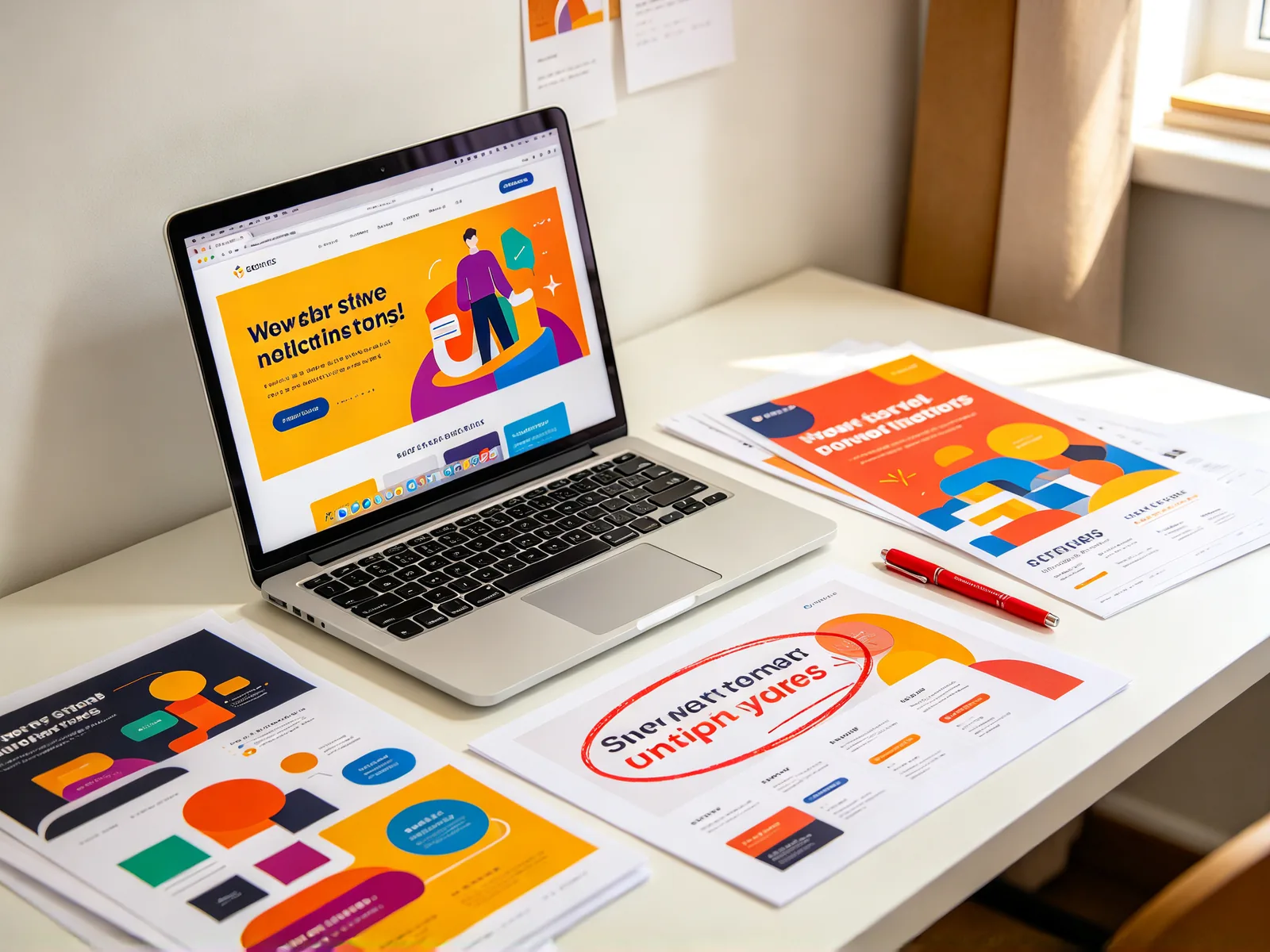
Why AI image generators misspell words
Image models paint letters as shapes rather than spelling them out, so long or unusual words often come out wrong. It is common in AI banners, posters and menus.
Rerunning the prompt changes the whole picture and can lose the layout you liked. As an AI text replacer, this tool redraws only the word you box.
- Box the misspelled word.
- Type the correct spelling.
- Repeat with Fix another word for each remaining mistake.
Tips to change text in an image cleanly
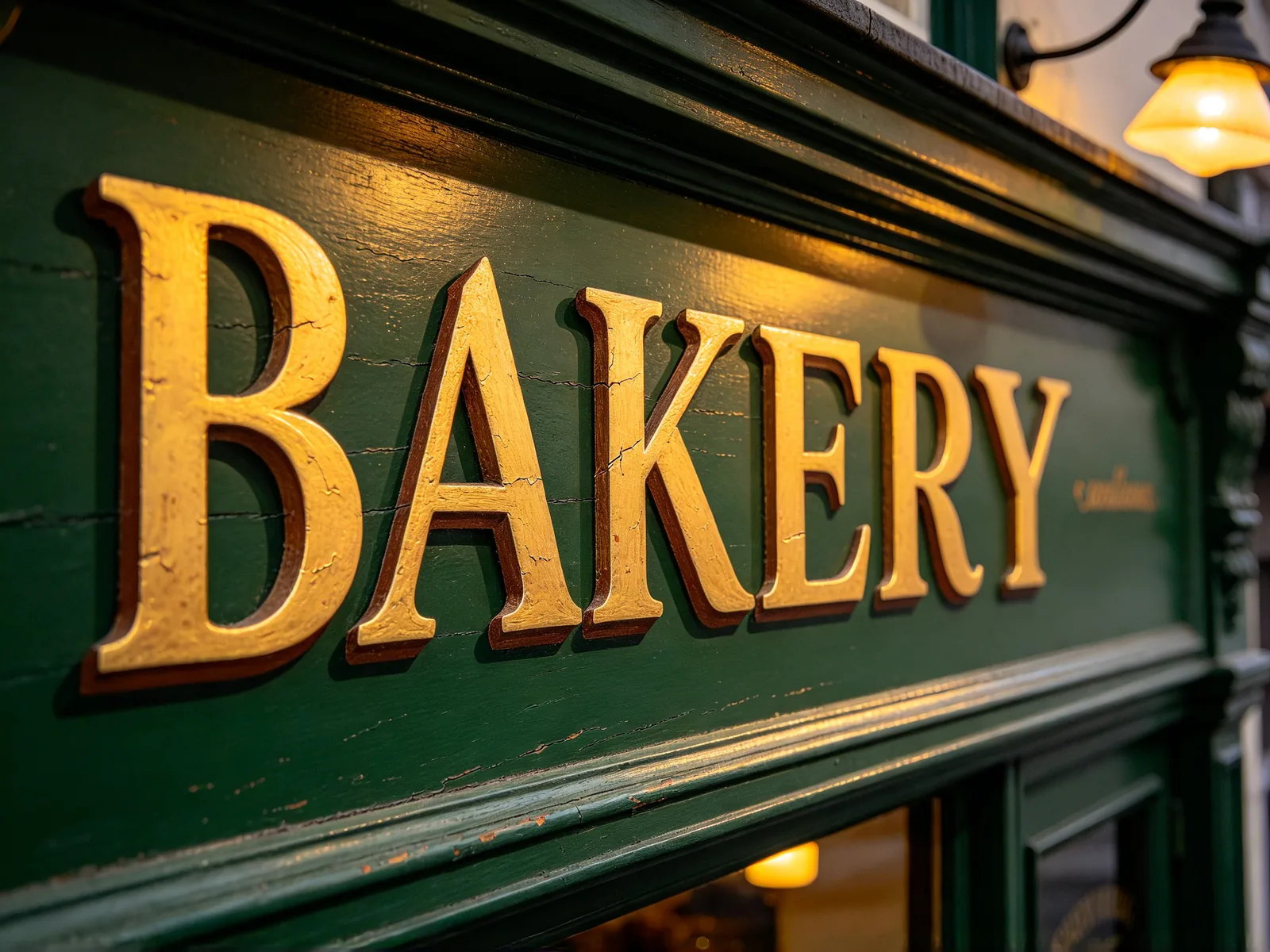
You choose the box and the wording; the text is not detected for you.
Models marked "Precise area" find the exact spot you boxed. Other models locate it from a description and may touch a nearby word when the image has a lot of text.
- Box the whole word, including its outline, glow and shadow.
- Fix one word or one line per run, then use Fix another word.
- Start from a sharp image; blurry letters give the model less to copy.
- Check small text at full size before you publish, and rerun if a letter looks off.
- The result comes back at the model's output size, so a very large source may be scaled down.
- Use it only on images you own or may edit.