Zero Kit AI

Qwen Image 2.1 AI Image Generator

Qwen Image 2.1 is an image generation and editing model from Alibaba's Qwen team that can make transparent images, combine many reference photos into one picture and change one part of a photo while keeping the rest.

  • QwenQwen
  • Up to 2K
  • Up to 10 reference images
  • Up to 4 images per run
  • Credits per image: from 5 (about $0.05)
  • Included in Plus and above
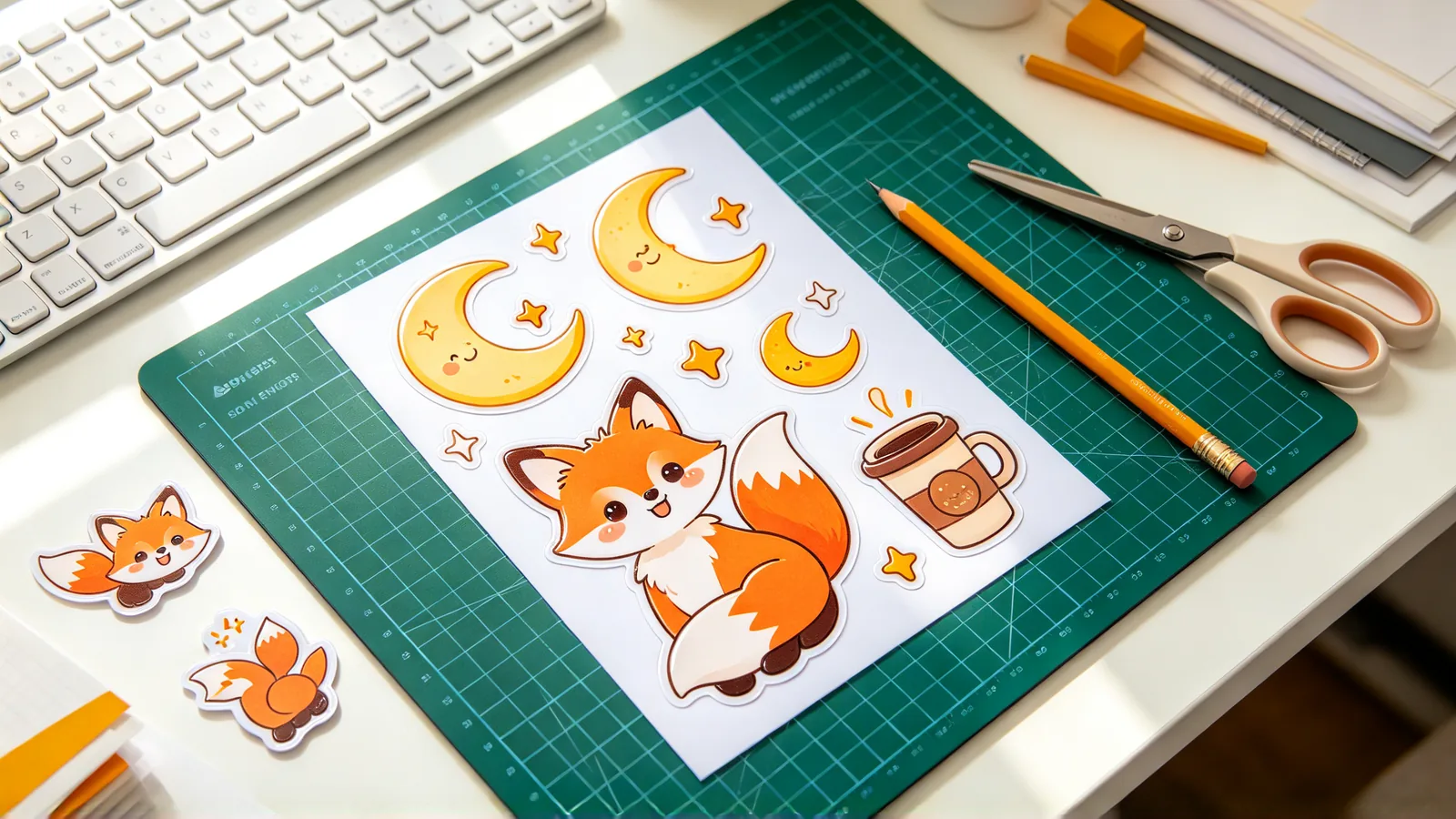
A designer's desk with a sheet of glossy die-cut stickers of a fox, a moon and a coffee cup, a cutting mat and a pair of scissors, in soft daylight.

What is Qwen Image 2.1?

Qwen Image 2.1 is a compact model in Alibaba's Qwen Image family. Text-to-image and image editing run in the same model, so one prompt box handles both.

Besides transparent images, multi-reference scenes and marked edits, Qwen highlights better typography, portrait lighting and fine detail than in the earlier Qwen image models.

On Zero Kit, Qwen Image 2.1 is included in Plus and above and runs in the editor at the top of this page. Write a prompt to generate from scratch, or upload reference images to edit a photo or build a new picture.

What you can set:

  • Up to 10 reference images.
  • 7 aspect ratios.
  • Output at 1K and 2K.
  • A Background setting that switches between a normal opaque image and a transparent PNG.

Each image costs credits by resolution, starting from 5.

Use it when you need assets rather than finished scenes:

  • Stickers and icons on a transparent background.
  • Logo marks and product cut-outs ready to place on a slide or a web page.
  • An outfit assembled from separate product photos.
  • A group picture made from individual portraits.

For dense pages full of text, such as a newspaper layout or a schedule poster, Qwen Image 3.0 is the better fit.

What Qwen Image 2.1 does well

Transparent PNG images, made directly

Qwen Image 2.1 can return an image with a real transparent background. A sticker, an icon or a product cut-out is ready to drop onto a slide, a web page or another photo, with no separate background-removal step.

Set the Background option to transparent and describe only the subject: a cartoon fox sticker, a glass perfume bottle, a hand-lettered word.

Qwen also shows the model editing images that are already transparent, such as changing a character's expression while keeping the empty background, and pulling one subject out of an everyday photo onto its own layer.
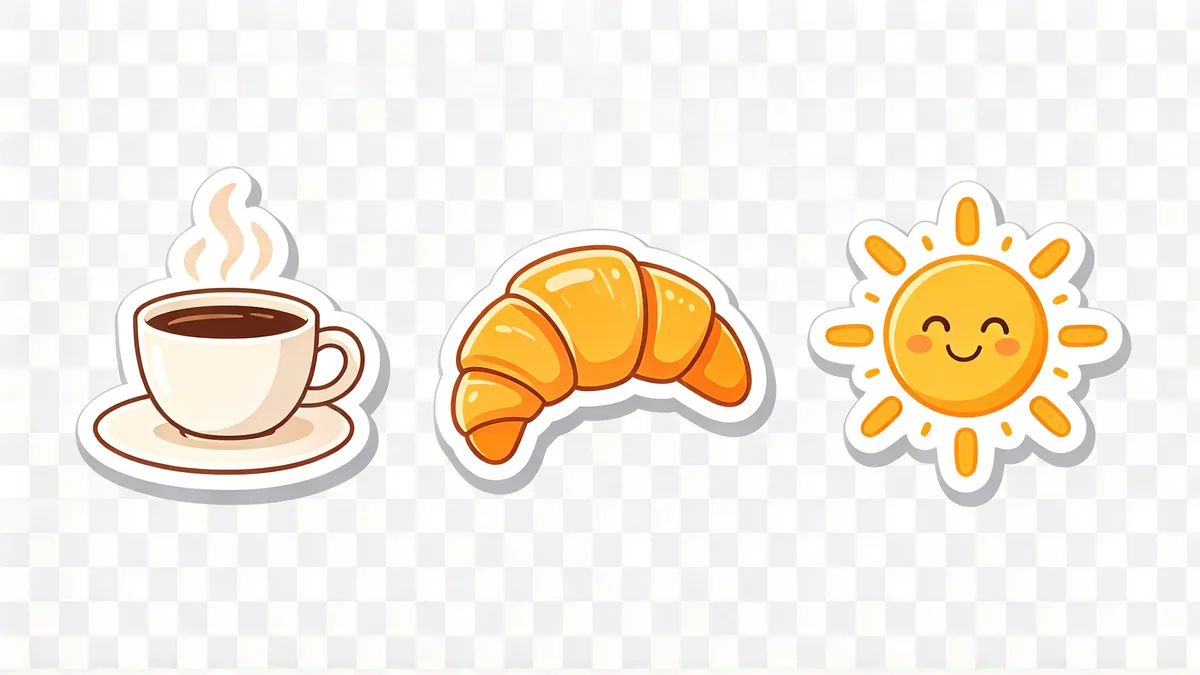
Three die-cut cartoon stickers in a row, a steaming coffee cup, a croissant and a smiling sun, each with a thick white border, on a light grey checkerboard that marks the transparent background.

This is an RGBA image with transparency. Three die-cut cartoon stickers in a row: a steaming coffee cup, a golden croissant and a smiling sun, each with a thick white border, flat bright colors and a soft drop shadow. The image has alpha channel and the background is transparent.
Combine multiple images into one picture

The model reads several reference images in one request and keeps track of which is which.

Qwen's own examples:

  • Six separate portraits put into one group photo.
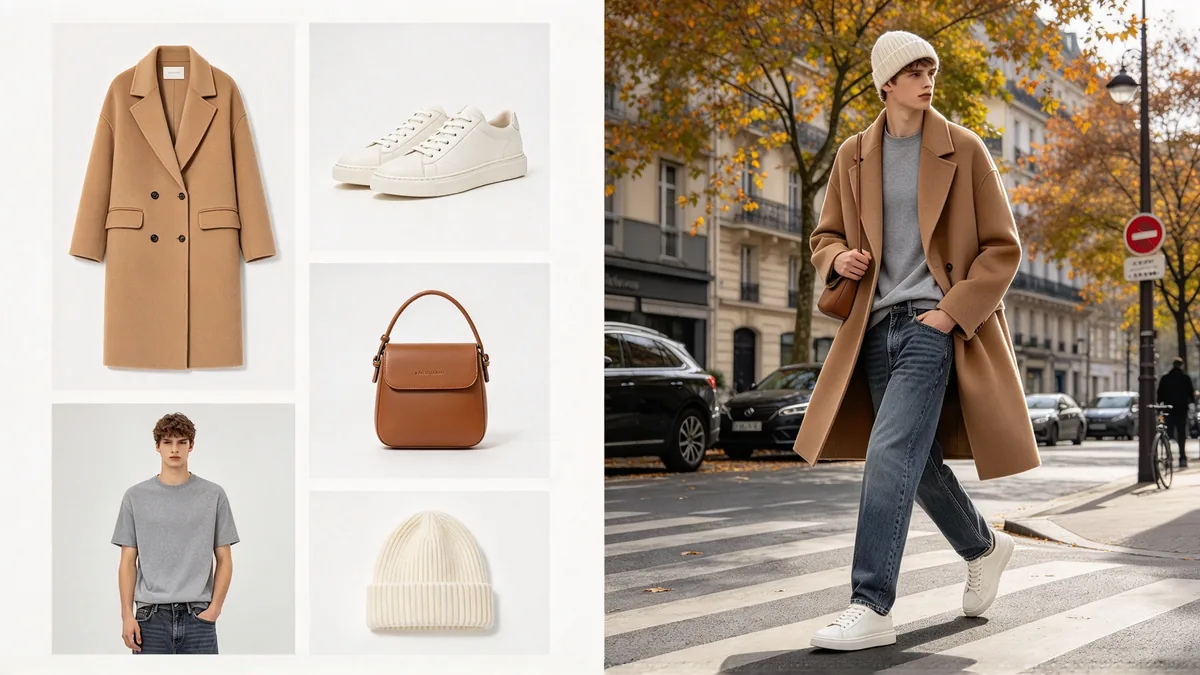
  • A model dressed in a coat, shoes, a bag and a hat taken from five different product shots.
  • A whole room furnished from ten pictures of furniture.

On Zero Kit you can upload up to 10 images. Refer to them by their order, as in "the person from image 1 wearing the jacket from image 2", and say what each image is for.

To change the clothes in one photo of a person, the AI outfit swap tool does that job on its own.

A diptych: on the left a grid of five product photos, a wool coat, white sneakers, a leather bag, a knit hat and a model standing in plain clothes; on the right the same model wearing all of the items on a city street.

A side-by-side diptych with a thin white divider. Left half: a neat grid of five reference photos on white backgrounds, a camel wool coat, a pair of white leather sneakers, a small brown leather bag, a cream knit beanie, and a young model standing in a plain grey t-shirt and jeans. Right half: the same model wearing the coat, sneakers, bag and beanie, walking on a city street in autumn, every item matching its reference. Natural light, realistic photography, no text, no logos.

Local edits that keep faces and products

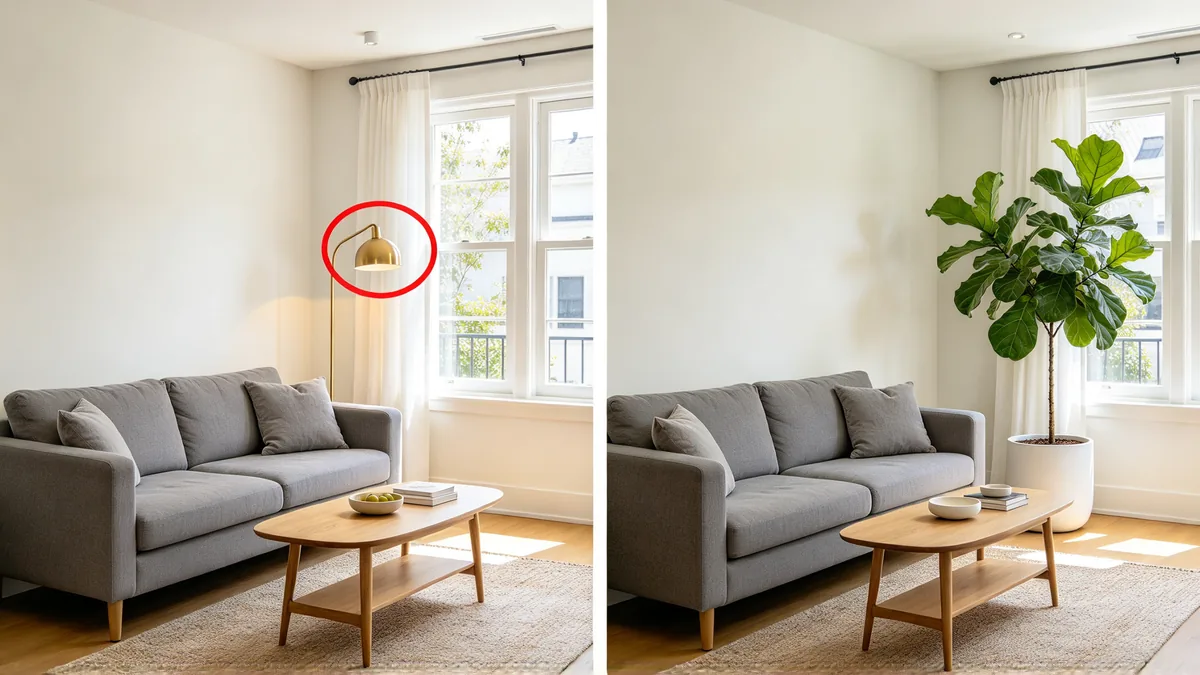
For a precise edit, mark the area on the photo before you upload it: draw a colored circle around the object or paint over the region, then say what the mark means.

Qwen's examples use three colored circles in one photo to remove a watch, change hair color and swap a shirt in a single edit.

Qwen says this version holds on to a person's facial features and to a product's printed text, texture and shape better from input to result, which is what portraits and product shots need.

A diptych of the same living room: on the left a red circle drawn around a brass floor lamp next to a sofa, on the right the lamp replaced by a tall leafy plant in a ceramic pot, with everything else unchanged.

A side-by-side diptych with a thin white divider, showing the same bright living room from the same angle. Left: a grey linen sofa, a wooden coffee table, a brass floor lamp beside the sofa with a hand-drawn red circle around the lamp. Right: the identical room with the lamp replaced by a tall fiddle-leaf fig in a white ceramic pot, the red circle gone, everything else unchanged. Soft daylight, realistic interior photography, no text, no logos. Identical framing in both halves: the same single grey sofa, coffee table, rug and windows; only the lamp is replaced.

How to write prompts for Qwen Image 2.1

  1. For an image with a transparent background, switch the Background option to transparent, describe only the subject, and leave out words like "on a table" or "in a room".

  2. With several references, name each image by its order and its role, for example "image 1 is the model, image 2 is the coat, image 3 is the shoes".

  3. For a local edit, use a different color for each marked area and give one instruction per color, such as "remove what is in the blue circle".

  4. Put every word that must appear in the image in quotation marks, keep it short, and check the spelling at full size before you use the result.

  5. Short prompts are expanded into a fuller description before generation, so a brief idea works; add detail only where you want control, such as the light, the material or the layout.

Sample prompts to try with Qwen Image 2.1

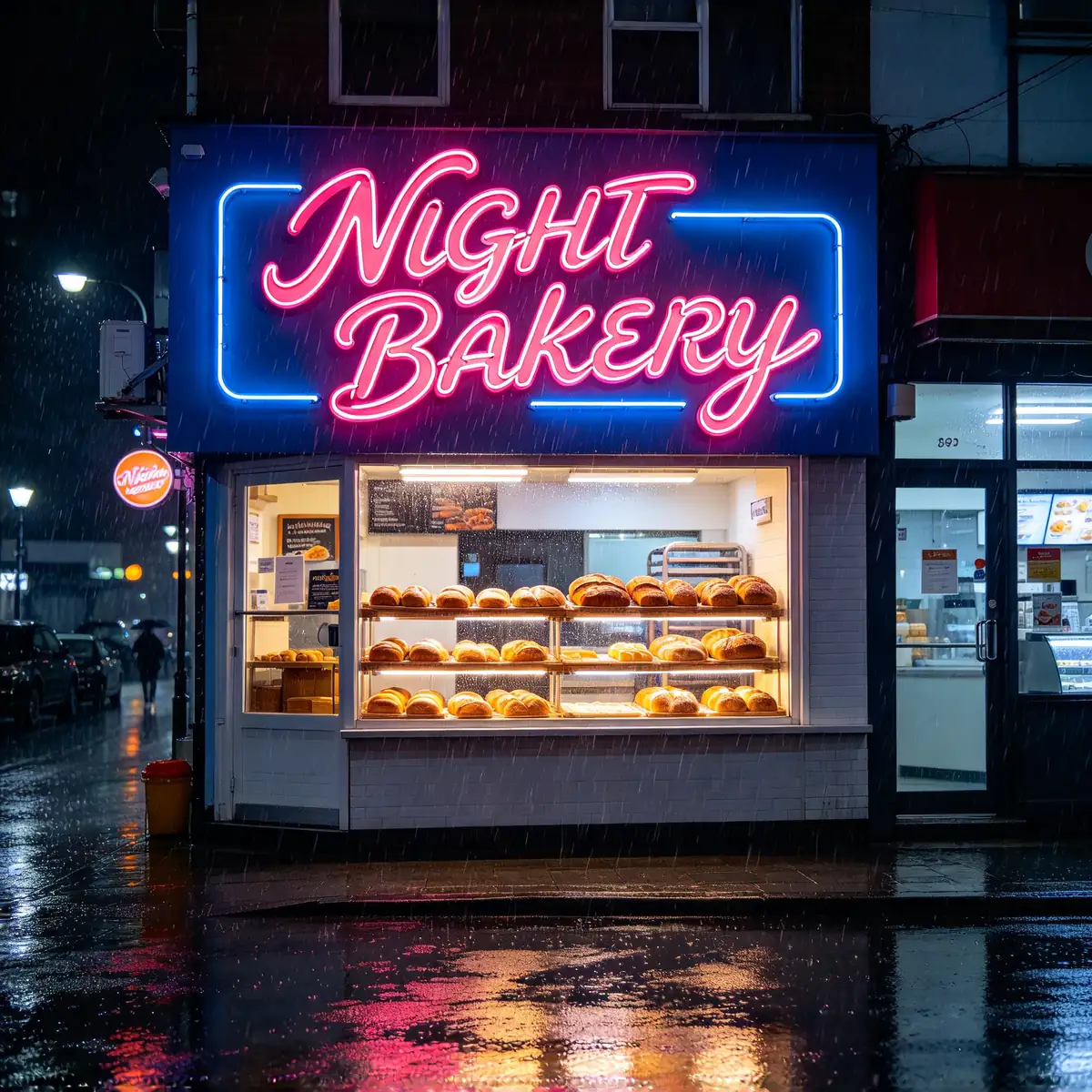
  • A pink and blue neon sign reading "NIGHT BAKERY" above a shop window on a rainy street, its colors reflected in the wet pavement.

    A sign with clean lettering

    A neon shop sign that reads "NIGHT BAKERY" in pink cursive letters with a blue outline, mounted above a small bakery window on a rainy night street, loaves visible behind the glass, glowing reflections on the wet pavement, light drizzle, square composition, correct spelling, no other text, no logos.

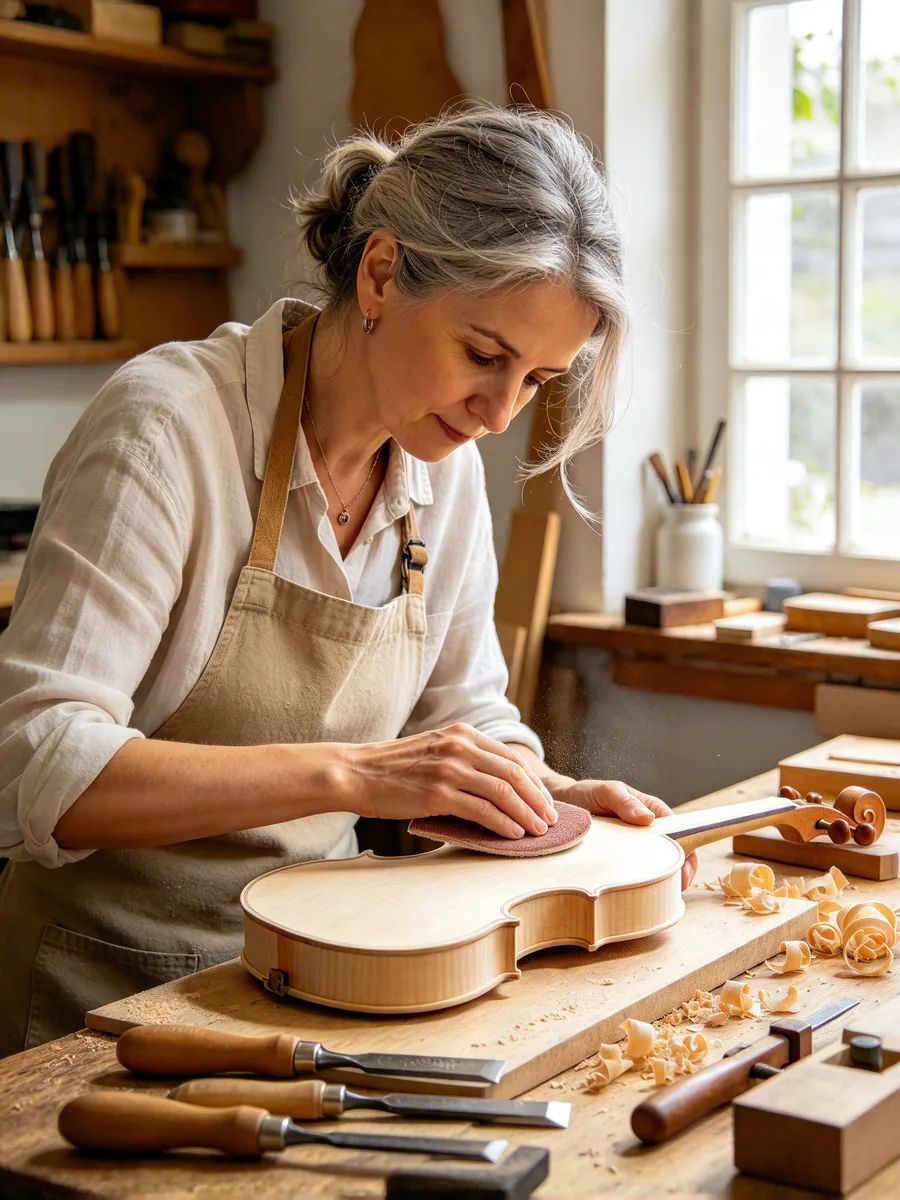
  • A violin maker in a canvas apron sands the top of an unfinished violin at her workbench, lit from the side by a tall window, with tools and wood shavings around her.

    Portrait in window light

    Vertical portrait of a violin maker in her workshop, a woman in her forties with tied-back grey hair and a canvas apron, sanding the spruce top of an unfinished violin. Soft side light from a tall window, visible skin texture and fine wood grain, chisels and clamps on the bench, curls of wood shavings, warm natural tones, 85mm lens, no text, no logos.

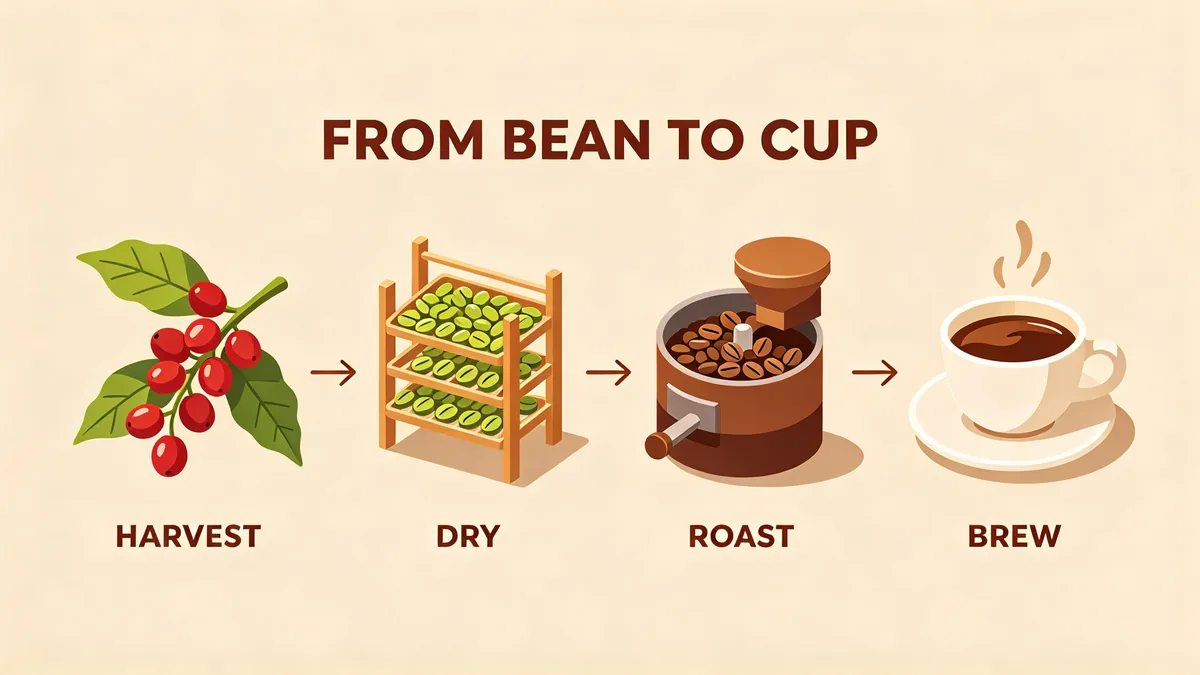
  • A wide infographic titled "FROM BEAN TO CUP" with four illustrated steps, from a coffee cherry on a branch to a cup of coffee, each with a short label.

    Infographic in four steps

    A clean horizontal infographic on a warm cream background titled "FROM BEAN TO CUP" at the top in bold letters. Four illustrated steps from left to right, joined by thin arrows: a red coffee cherry on a branch labeled "HARVEST", green beans drying on a rack labeled "DRY", brown beans in a roasting drum labeled "ROAST", a cup of coffee labeled "BREW". Flat illustration style with soft shadows, correct spelling, no other text, no logos.

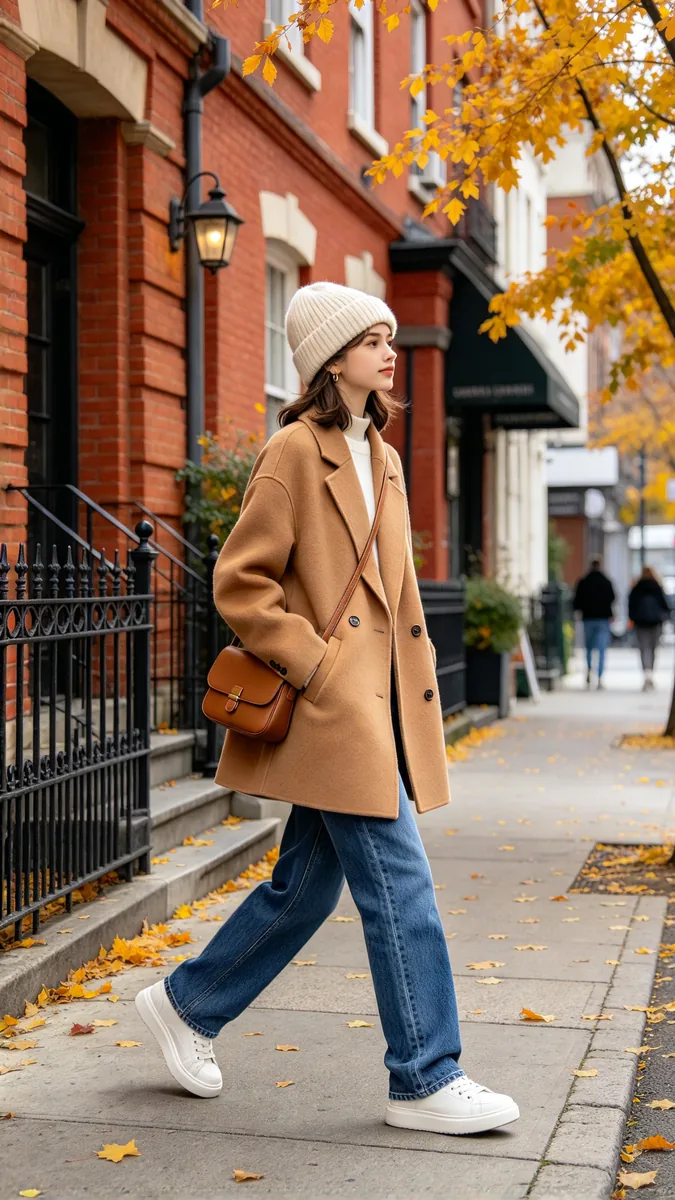
  • A full-length street-style photo of a person in a camel wool coat, a cream knit beanie, white sneakers and a small brown leather shoulder bag, walking past brick buildings in autumn.

    Full outfit in one shot

    Full-length street-style fashion photo of a young person walking on a city sidewalk in autumn, wearing a camel wool coat, a cream knit beanie, straight blue jeans, white leather sneakers and a small brown leather shoulder bag. Red brick buildings and fallen yellow leaves behind, soft overcast light, natural candid pose, vertical frame, no text, no logos.

Sample images are illustrative; results vary by model.

Qwen Image 2.1 specs and pricing

Every price below comes from the live price list, so it changes here as soon as rates change. Credits are charged per image, or per second of video.

Credits per image Dollar amounts are approximate, based on monthly subscription prices.
ResolutionPlanCredits
1KPlus5 about $0.05
2KPlus10 about $0.10

Qwen Image 2.1 limitations

  • A transparent background works best when the prompt describes only the subject. If the prompt mentions a scene, a table, a wall or any other surface, the result may come back with a background even when transparency is switched on.

  • Every extra reference image gets a smaller share of the model's attention, so fine details such as small logos or printed patterns can drift when you upload many at once.

    For a faithful product or face, use fewer references and say exactly what each one is for.

  • The editor has no mask brush for this model. To change one area, draw a circle or paint over it on the photo before you upload it, and describe in the prompt what the mark asks for.

    The marks cover part of the original picture, so keep them thin and only around what should change.

Qwen Image 2.1 FAQ

Qwen Image 2.1 is an image generation and editing model from Alibaba's Qwen team. It makes regular and transparent images from text, edits photos, and combines several reference images into one picture.

Alibaba has also published open weights for Qwen Image 2.1 Turbo, a faster checkpoint of the same model that needs fewer steps. The model on this page is Qwen Image 2.1, not Turbo.

Ready to try Qwen Image 2.1?

Write a line or pick a sample prompt, then press generate.

Last updated: