Remove a person from a photo with AI
Take strangers, photobombers and crowds out of your pictures. Brush over each person and the background behind them is filled back in, so the photo looks as if they were never there.
- Free daily credits
- Nothing to install
People removed from real photos
Drag the divider to see the before and after.
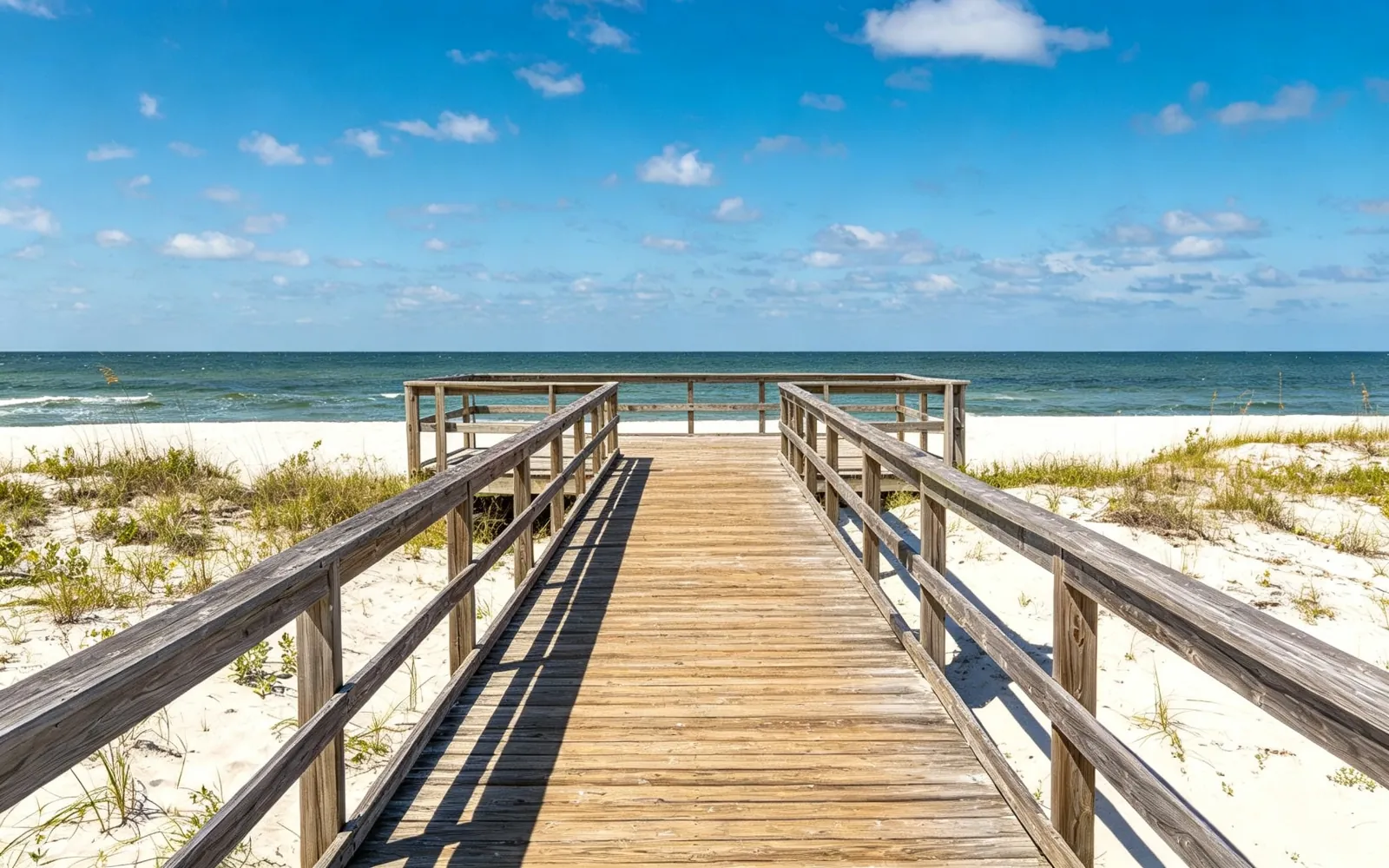
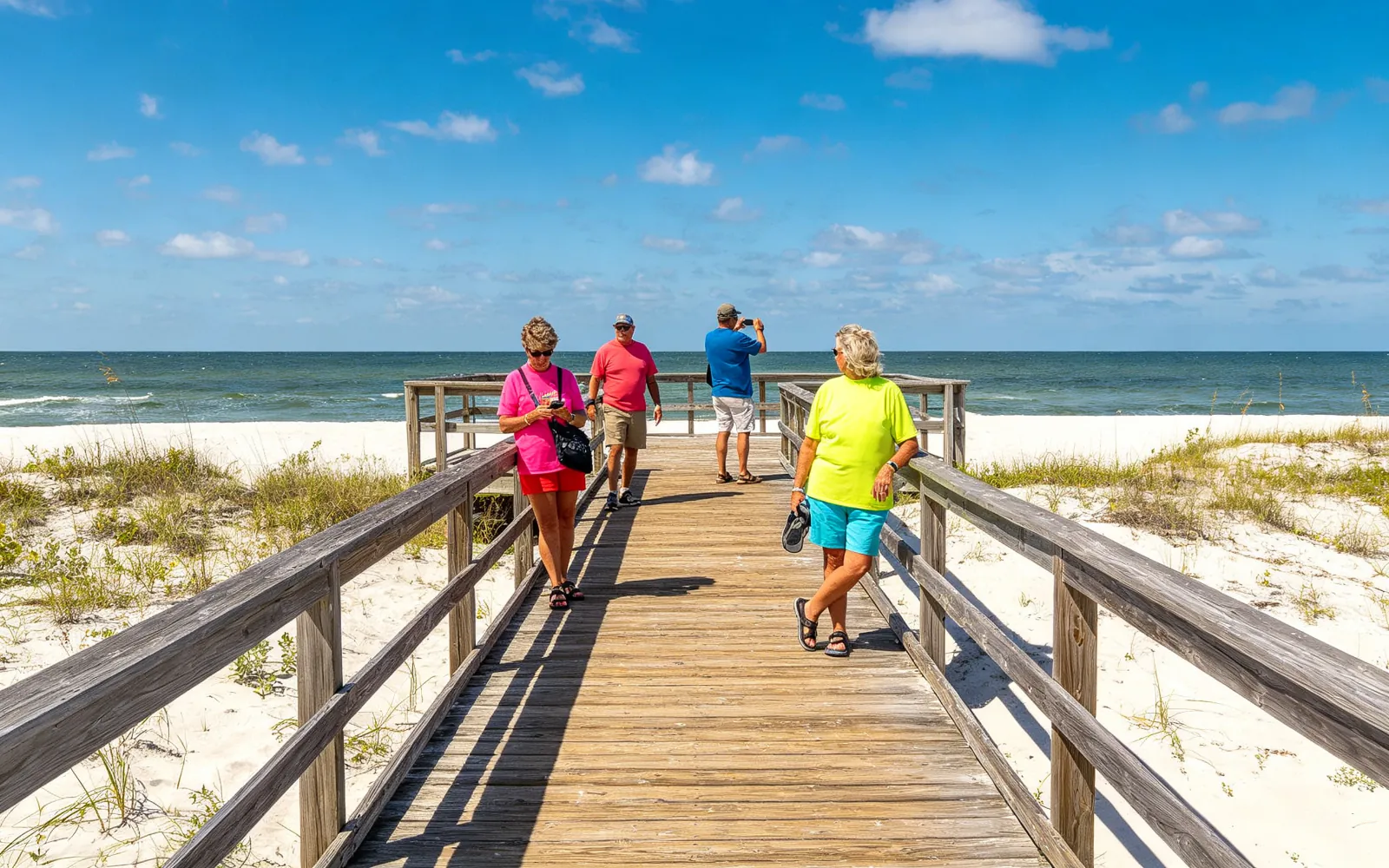
Clear tourists off a beach boardwalk
Tourists removed from a seaside boardwalk
Try this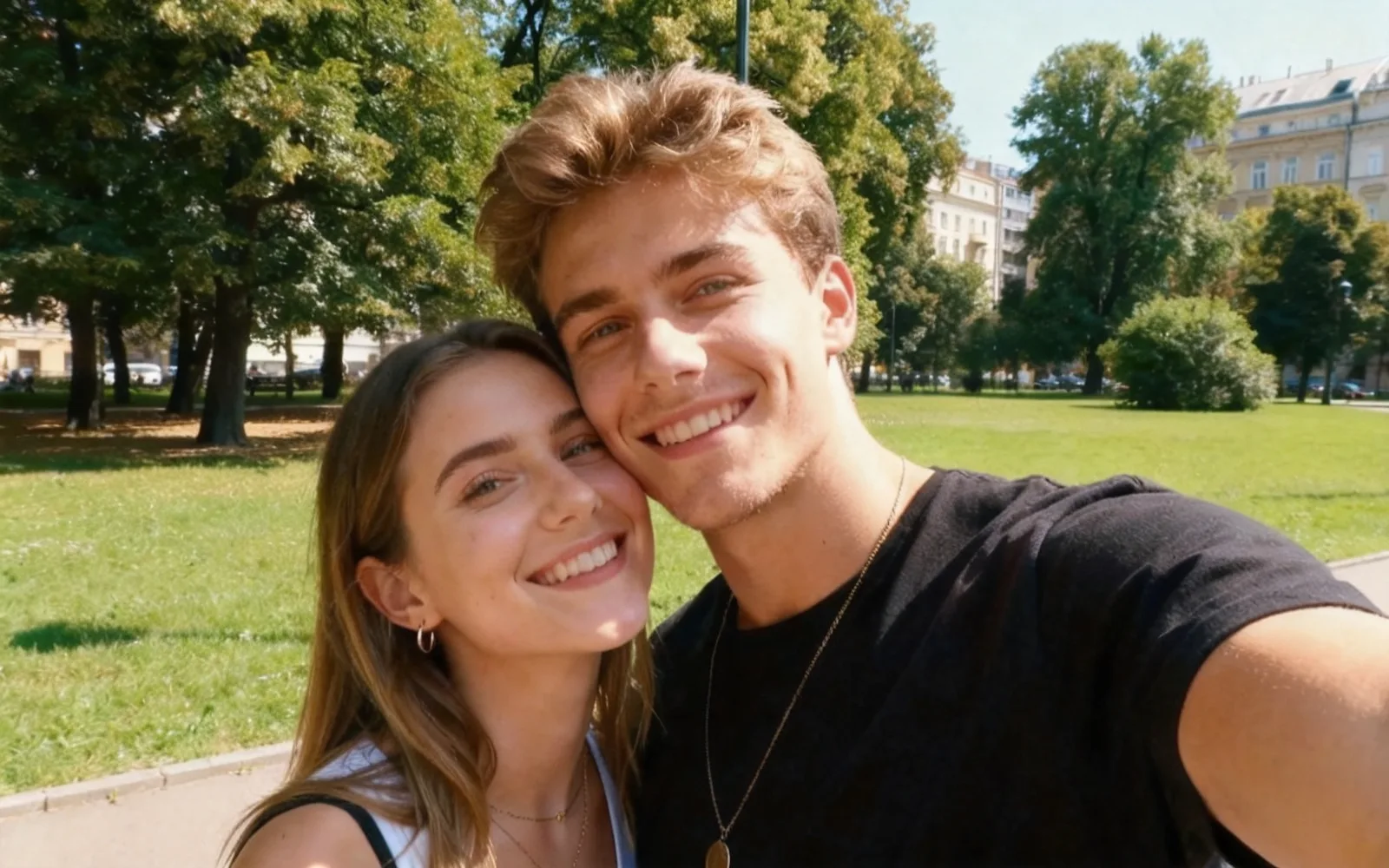
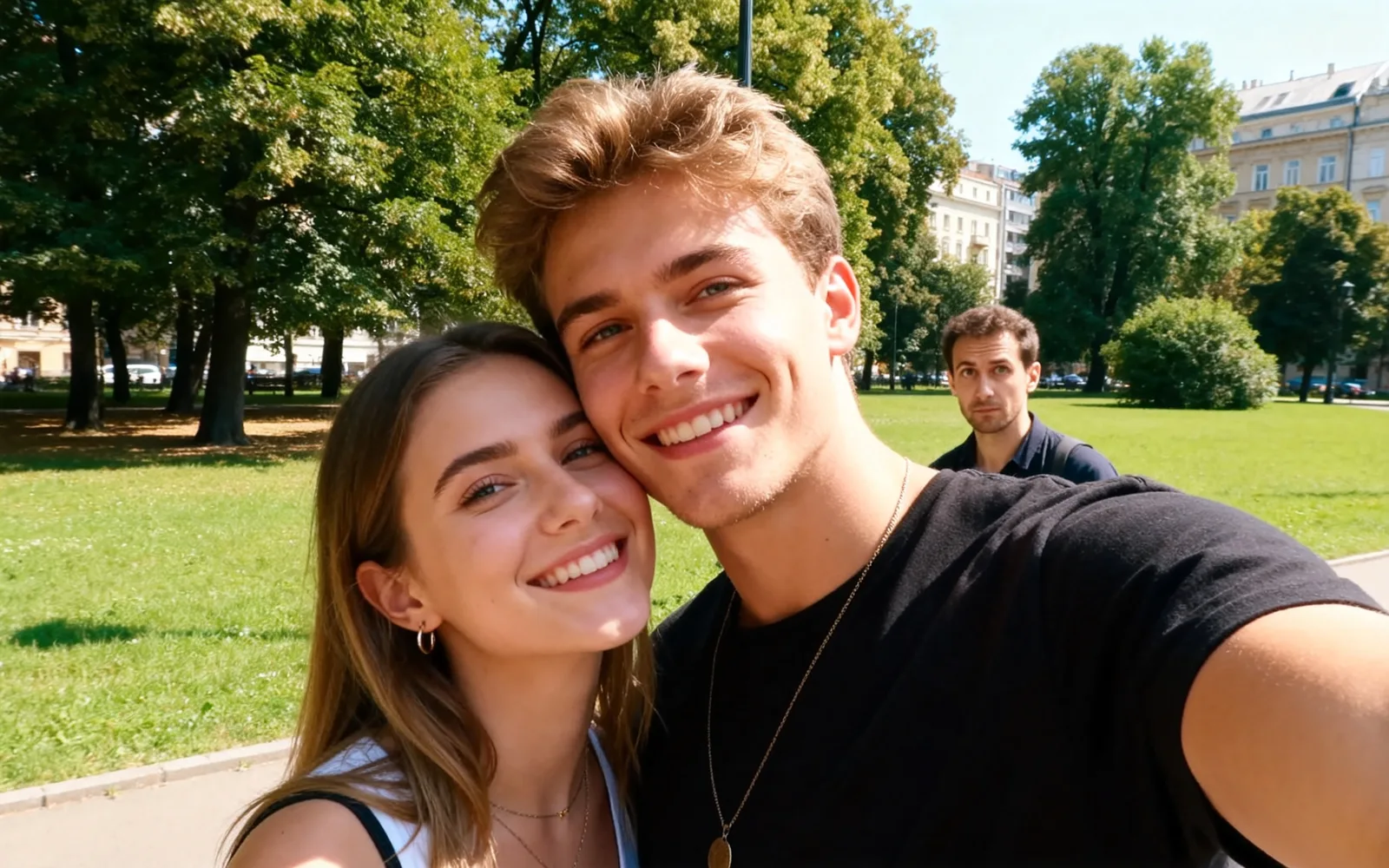
Remove a photobomber from a portrait
A stranger behind a couple removed from a park portrait
Try this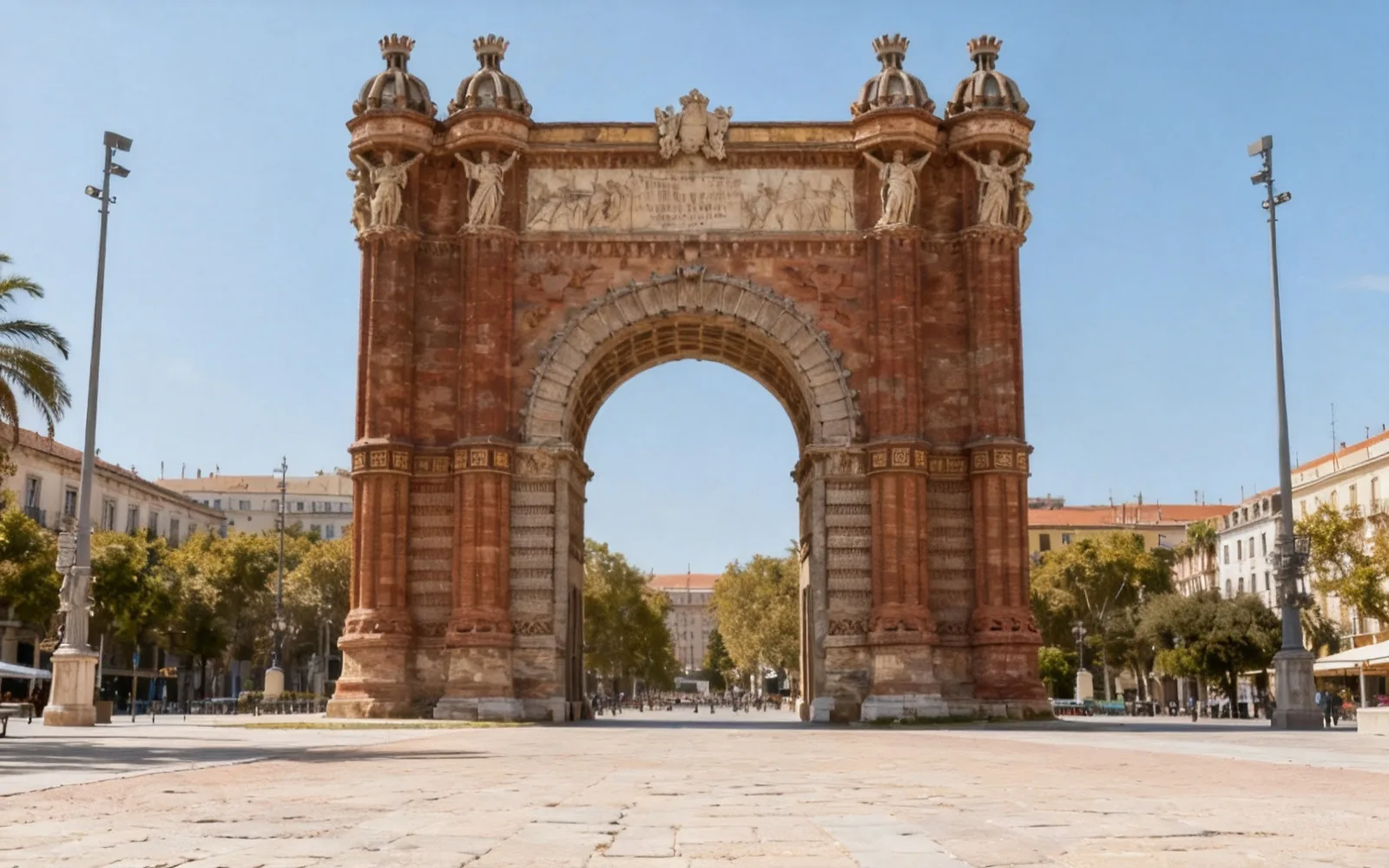
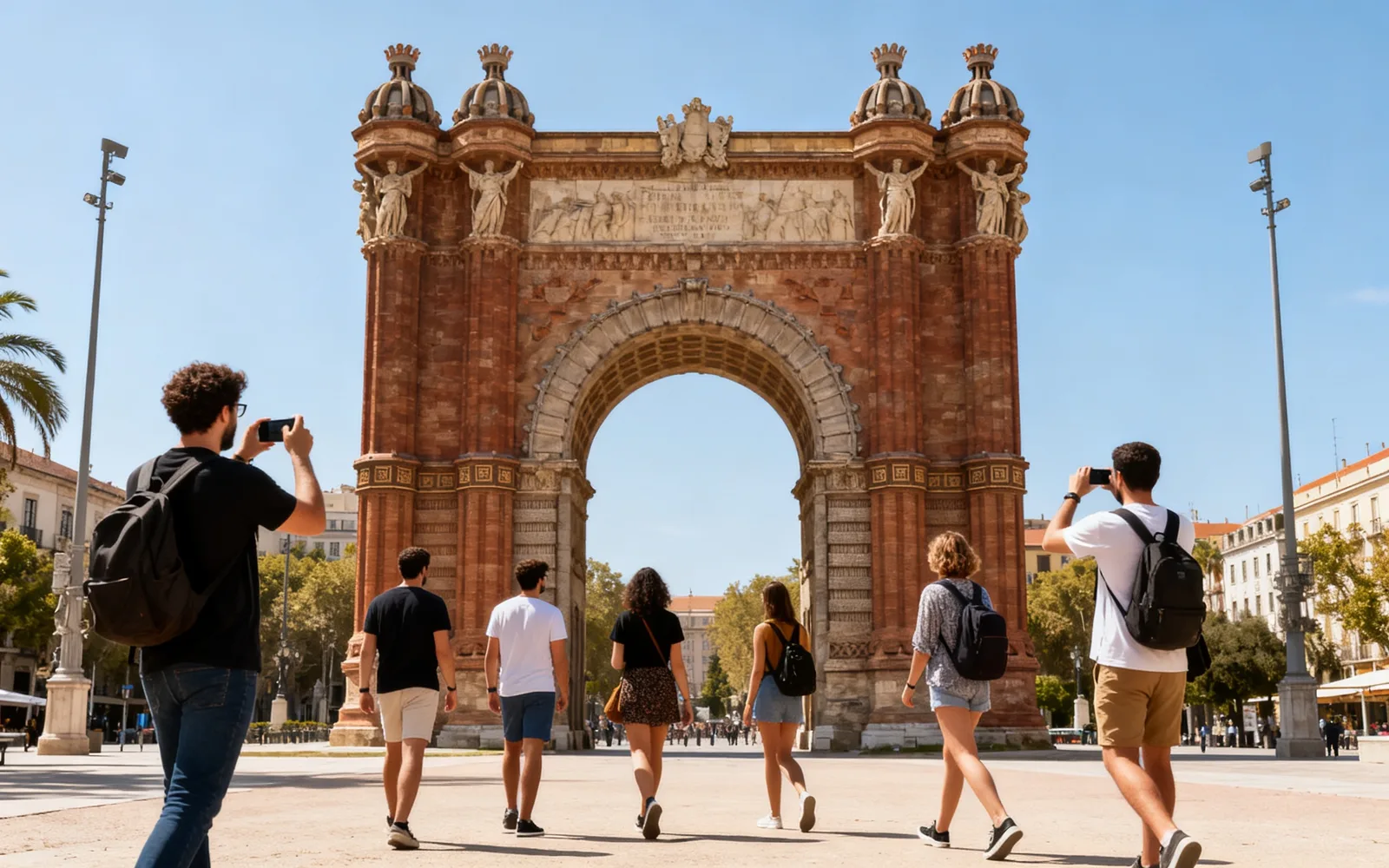
Remove tourists in front of a landmark
A crowd cleared from in front of a stone arch
Try this

Remove one person from a group photo
One friend removed from a restaurant group photo
Try thisHow to remove someone from a photo
- 1
Upload the photo
Choose an image or drop it onto the page. Files up to 5 MB are accepted, including photos straight from a phone saved as JPG.
- 2
Brush over the whole person
Paint over the person from head to feet, with their hair, bag and anything they are holding. Include their shadow on the ground.
- 3
Process the photo
Click Process. You do not need to describe anything; the background behind the person is rebuilt from the scene around them.
- 4
Check the edges and download
Drag the divider to compare. If a hand or the tip of a shadow is still visible, run the result again on what is left, then download it.
Mark the whole person, not just the outline
People leave more traces than objects do. Loose hair, a strap over the shoulder, a phone in a hand and the shadow at their feet all need to be inside the brush mark, or they stay behind floating in the scene.
Paint a little wider than the body. A margin of a few pixels lets the new background blend in without a visible edge. Reflections in shop windows, puddles and water count too.
Removing people from travel photos
Busy viewpoints rarely empty out, so crowd removal is the most common use. You can mark several people in one run. Those standing in front of sky, sand, water or a plain wall disappear most cleanly.
People standing in front of a detailed building are harder, because the model has to invent the carvings, windows or signs they covered. For a dense crowd, work in two or three passes and remove a few people at a time.
Taking someone out of a group photo
The model fills the space where the person stood with background; it does not move the other people closer together. A gap at the edge of the group looks natural, while a gap in the middle may look like an empty spot.
An arm around someone else's shoulder or overlapping bodies are the hardest case. The hand on the neighbour's shoulder has to be brushed as well, and the part of the neighbour it covered has to be invented, so check that area closely.
Why the background decides the result
The model can only rebuild what the photo suggests. A person in front of a lawn, a beach or a blank wall leaves little to guess. A person who hides a doorway, a sign or another face leaves a lot to guess, and the invented part may not match what was really there.