Remove text from an image with AI
Erase captions, date stamps, price tags, stickers and lettering from a picture. Brush over the words and the surface underneath is repainted to match the rest of the photo.
- Free daily credits
- Nothing to install
Text removed from real images
Drag the divider to see the before and after.


Remove a date stamp from a photo
An orange date stamp removed from a film-style beach photo
Try this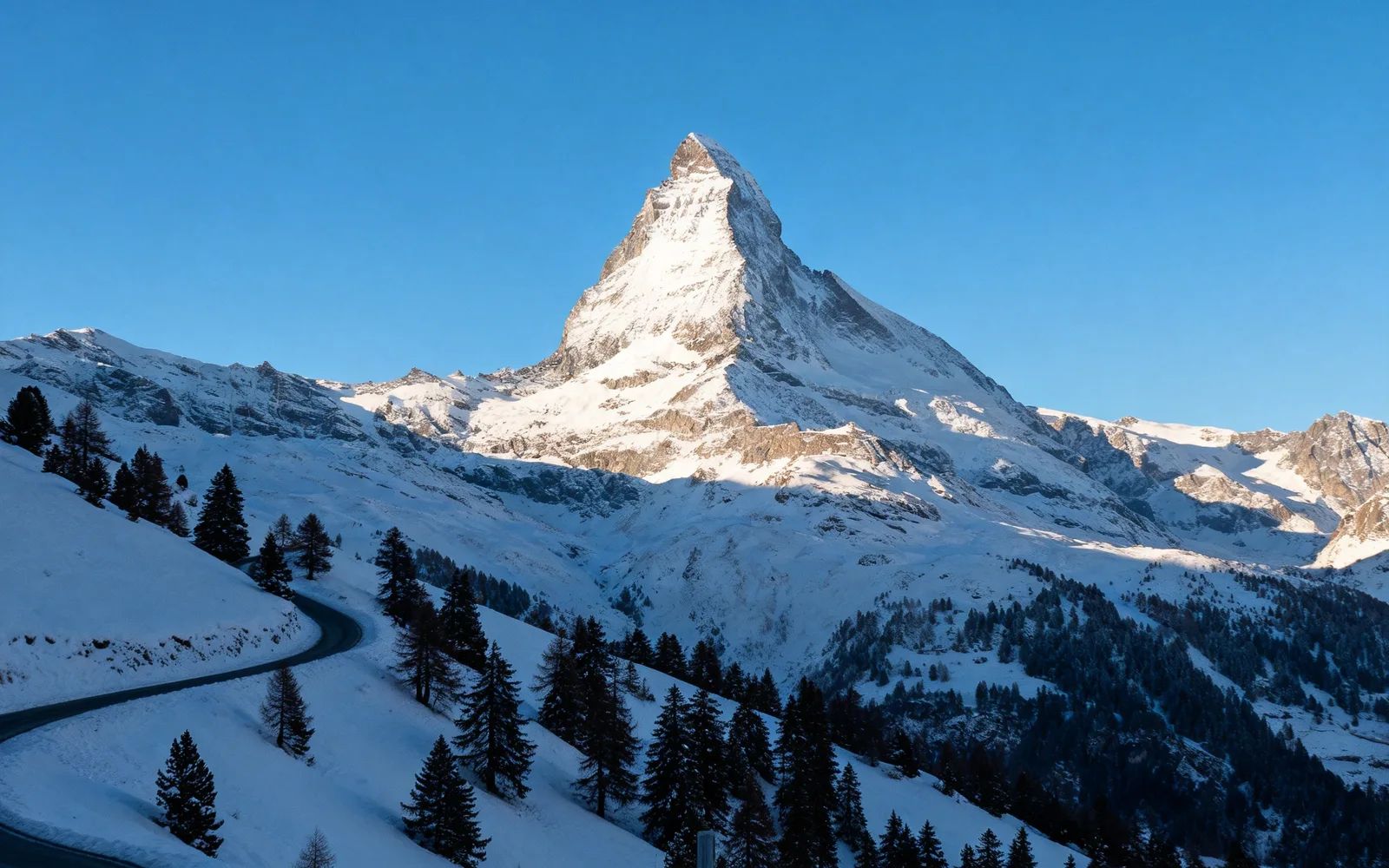
Remove a caption from an image
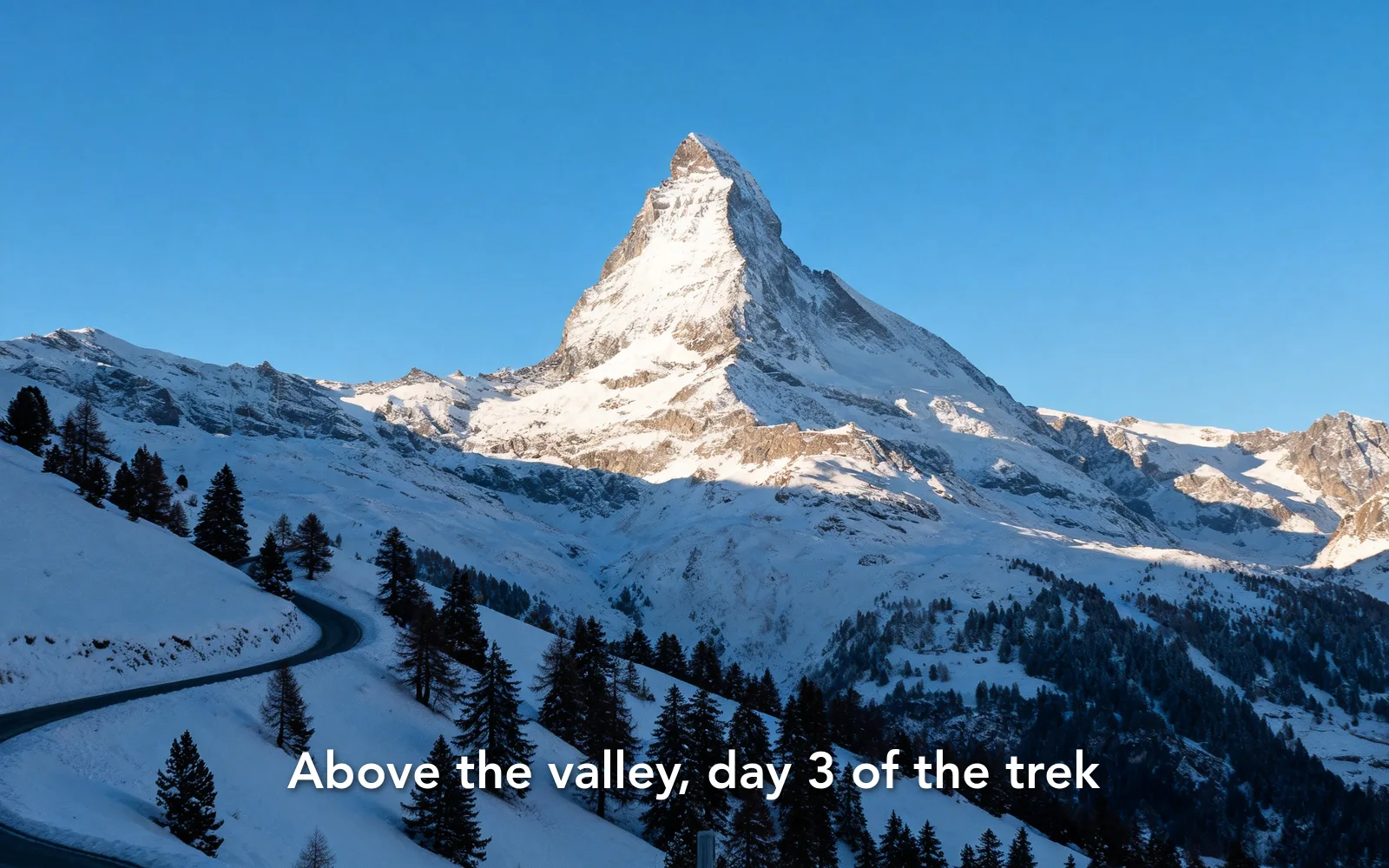
A line of bold caption text removed from a mountain view
Try this
Remove a price sticker from a product photo
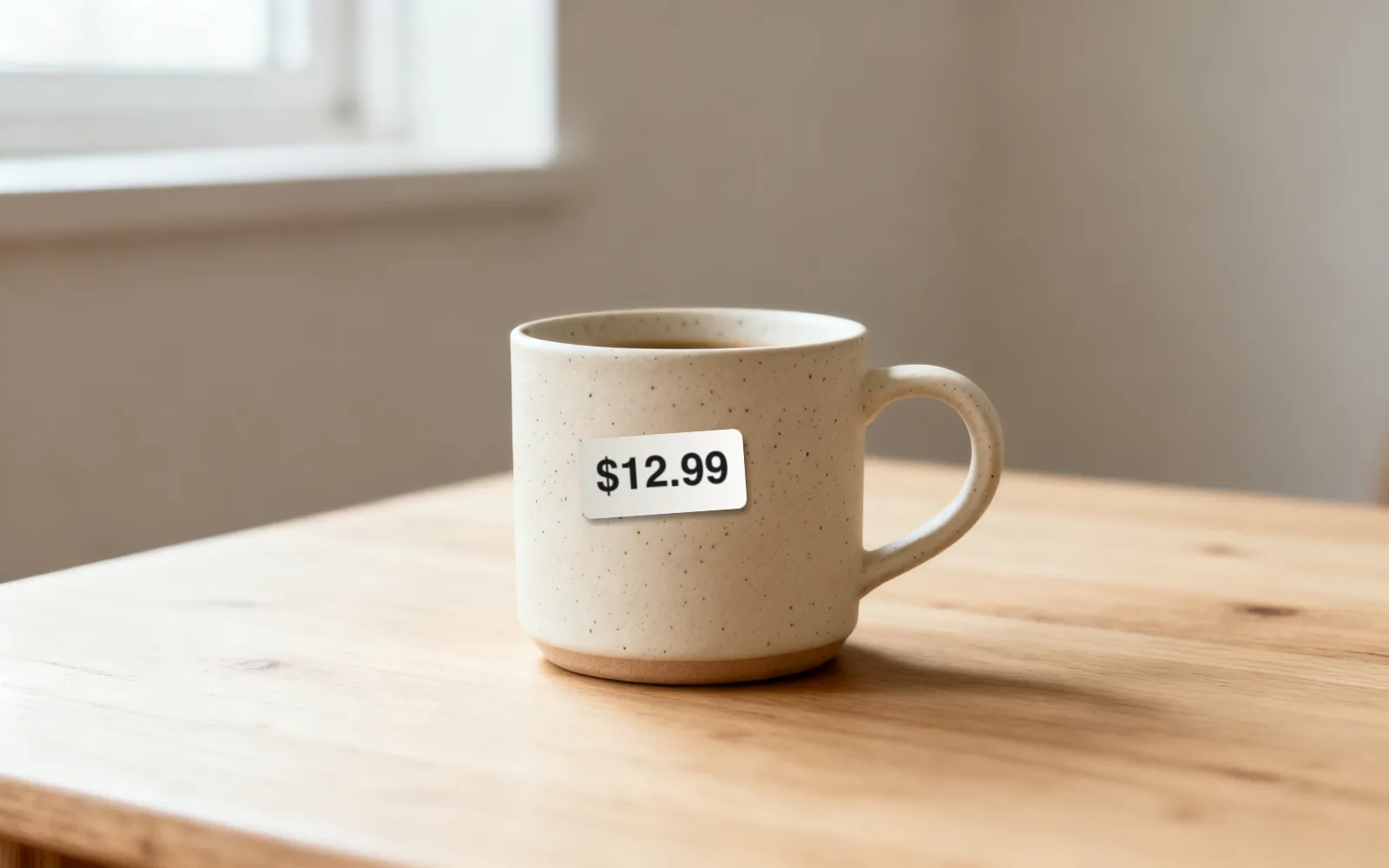
A price sticker removed from a ceramic mug
Try this

Remove lettering from a sign
Painted lettering removed from a café's wooden sign
Try thisHow to remove text from a picture
- 1
Upload the image
Choose an image or drop it onto the page. Screenshots, scans and photos up to 5 MB are accepted.
- 2
Brush over every letter
Zoom in and paint over the words with a small margin. Include outlines, drop shadows and punctuation, which are easy to miss.
- 3
Process the image
Click Process. The text is not detected automatically; only what you brushed is repainted.
- 4
Compare and download
Drag the divider to check the result. If faint strokes remain, run it again on those spots, then download.
Removing date stamps from old photos
Many film and early digital cameras printed the date in orange digits in a corner. The stamp usually sits on sky, grass or clothing, which repaints well. Brush each digit and the apostrophe separately if they are far apart.
Scan the print first. A flat scan at 600 dpi keeps the area around the stamp sharp, which gives the model a better surface to copy.
Captions, emoji and stickers added in apps
Text added on top of a picture, such as meme captions, story text, emoji and stickers, sits over the photo rather than in it. Brush over the whole overlay, including its outline or shadow, and the scene underneath is repainted.
Bold text across a busy area, such as a crowd or foliage, may leave a slightly softer patch. If it does, a second pass with a smaller brush usually evens it out.
Text printed on objects
Lettering on signs, labels, packaging and shop windows is part of the object. Removing it leaves a blank surface in the same material, such as plain wood, paper or glass.
- Flat, evenly colored surfaces give the cleanest result.
- Curved surfaces like bottles and mugs work, but the reflections may need a second pass.
- Text across a detailed pattern, such as a printed fabric, may leave traces in the pattern.
- Large letters that cover most of a sign can make the sign itself look repainted.
Writing new text instead
This tool clears text; it does not write new words. To put your own text on the cleaned image, add it in a design app such as a slide or poster editor, where you control the font and spelling. AI image tools, including inpainting, often misspell or distort lettering.