Image to image AI: create a new image from your photo
Upload one or more reference images and describe what you want. The model keeps what matters from your picture, such as a product, a room or a layout, and draws the rest from your prompt.
- Free daily credits
- Nothing to install
Image to image examples with the prompts used
 After
After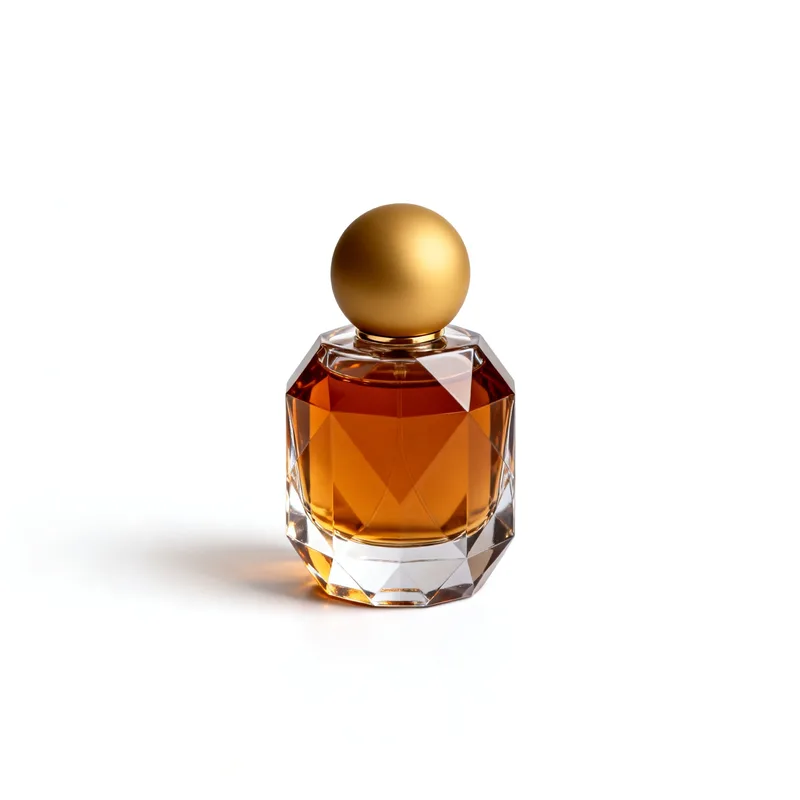
Put a product into a new scene
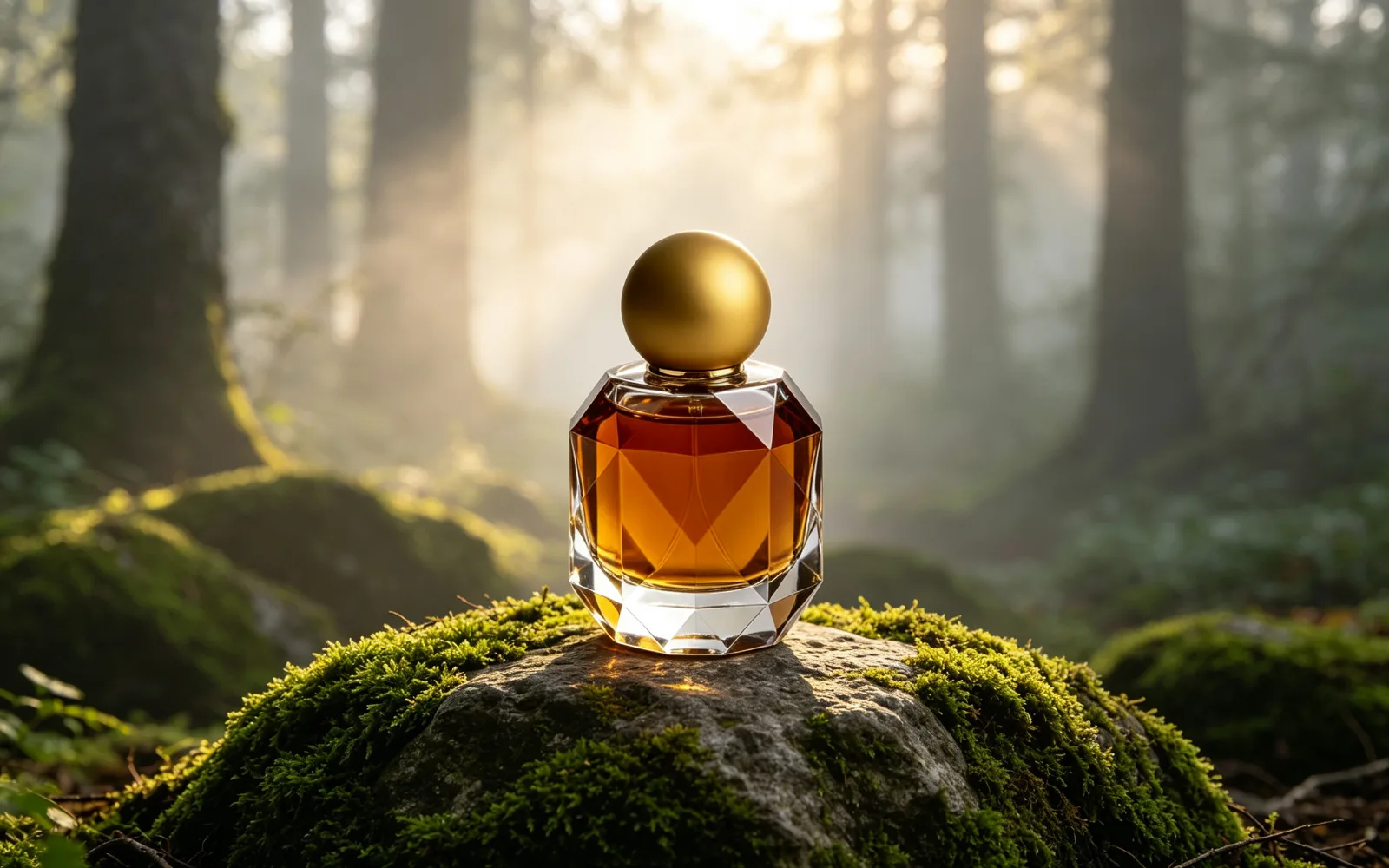
A perfume bottle on a white background placed on a mossy stone in a misty forest
Prompt place this perfume bottle on a mossy stone in a misty forest, soft morning light
Made with Seedream 4.5
Try this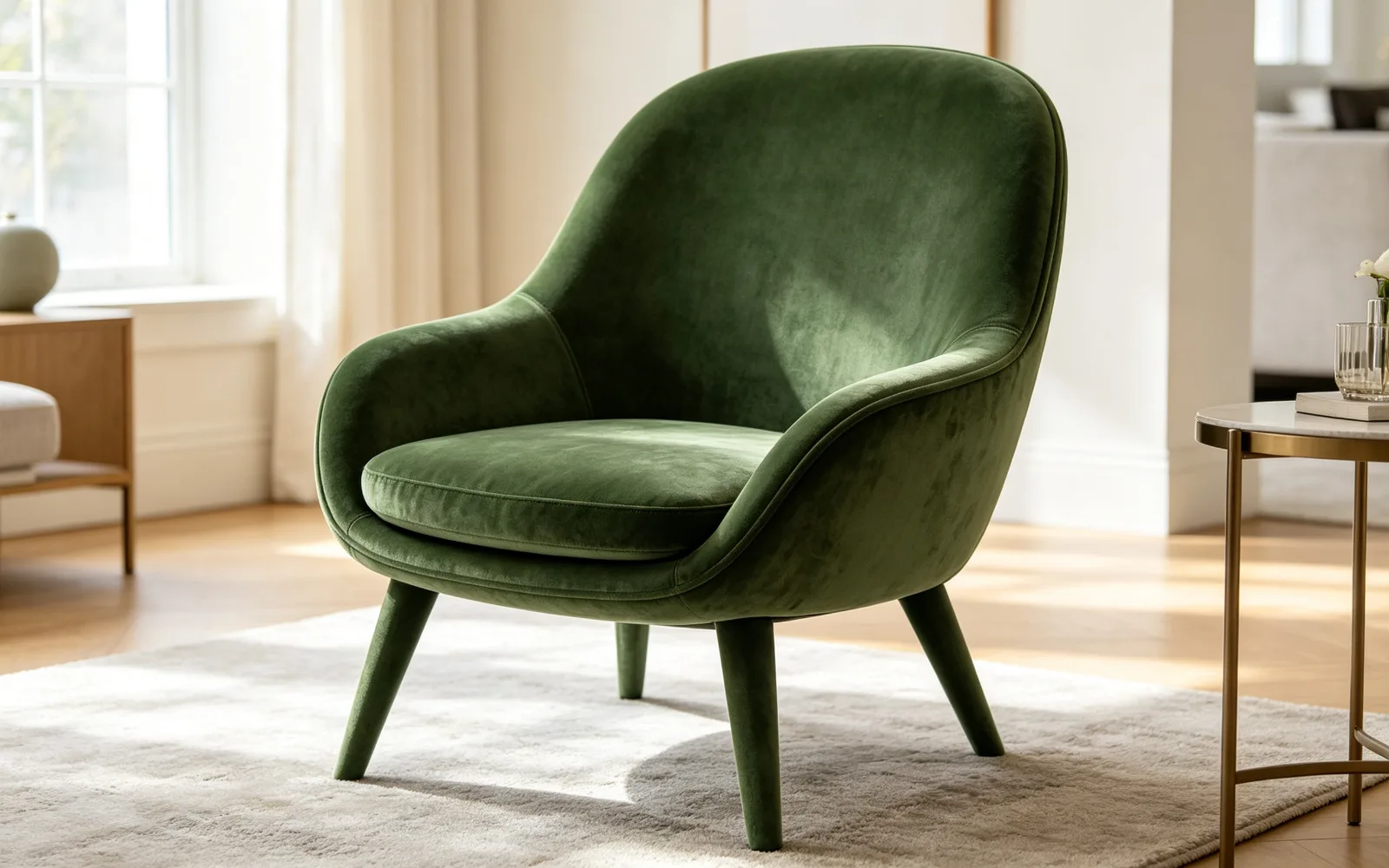 After
After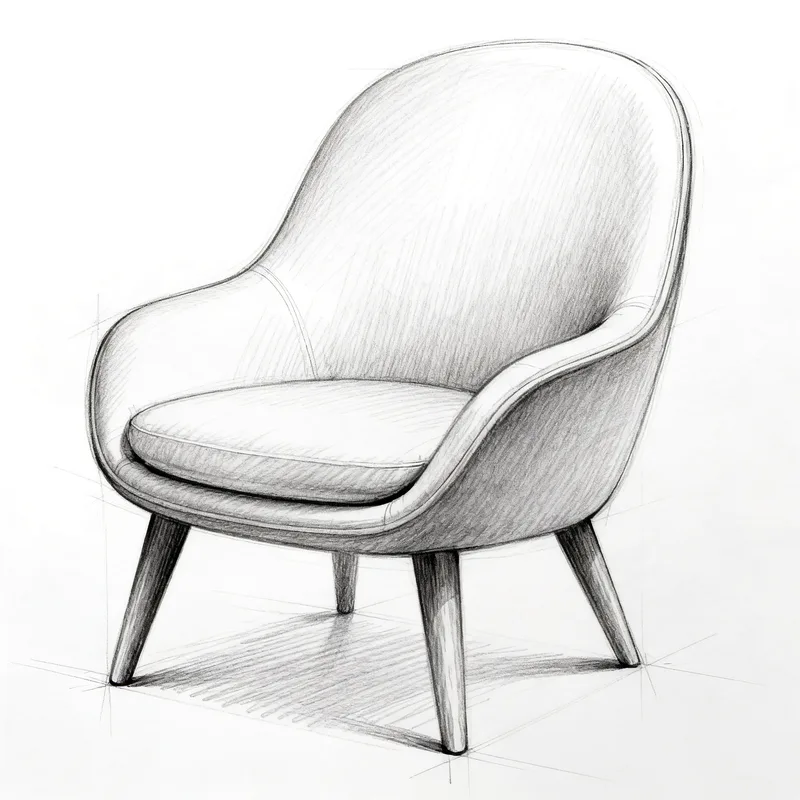
Turn a sketch into a realistic image
A pencil sketch of an armchair turned into a photo of a green velvet chair
Prompt a photorealistic armchair in green velvet in a bright living room, based on this sketch
Made with Seedream 4.5
Try this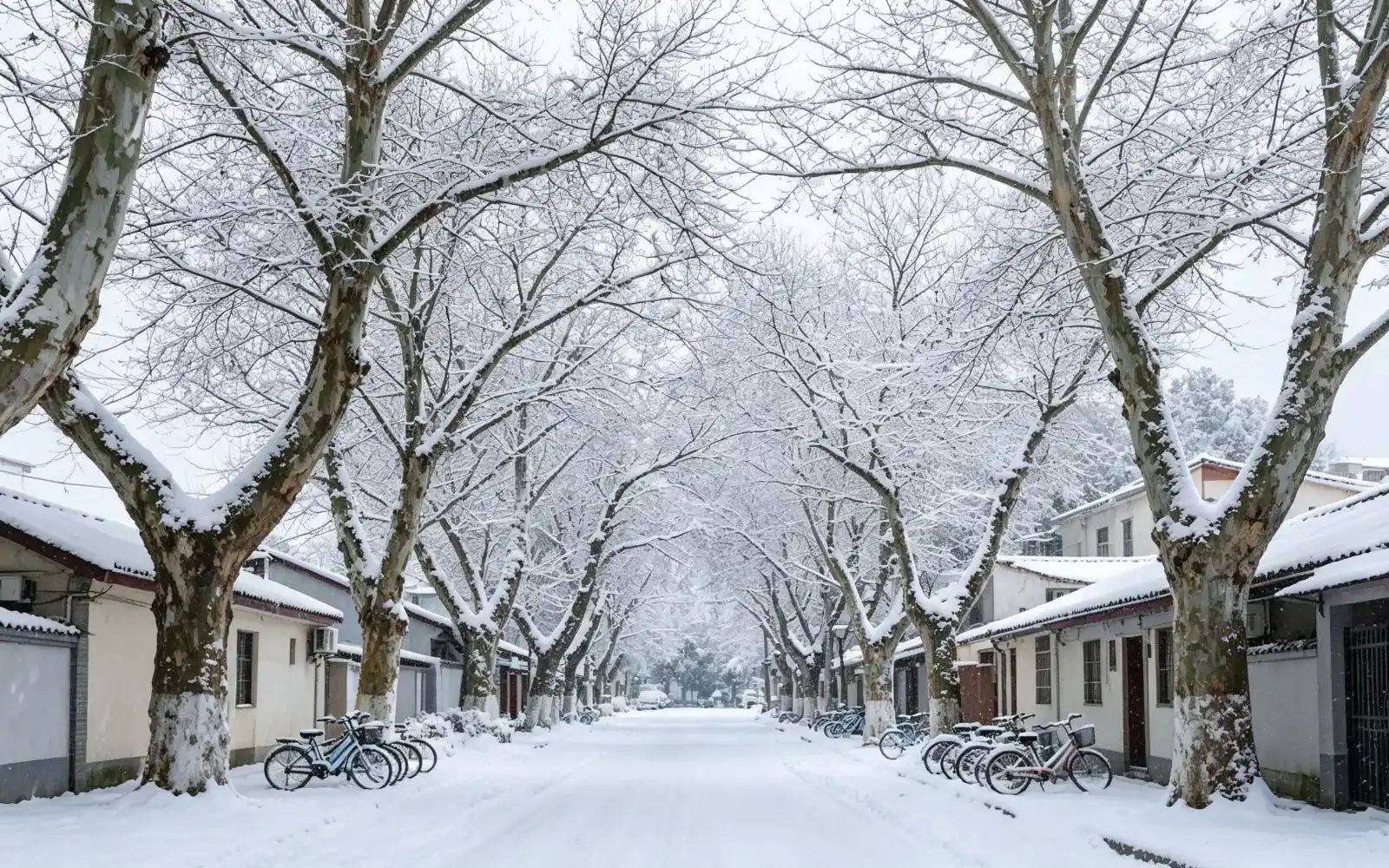 After
After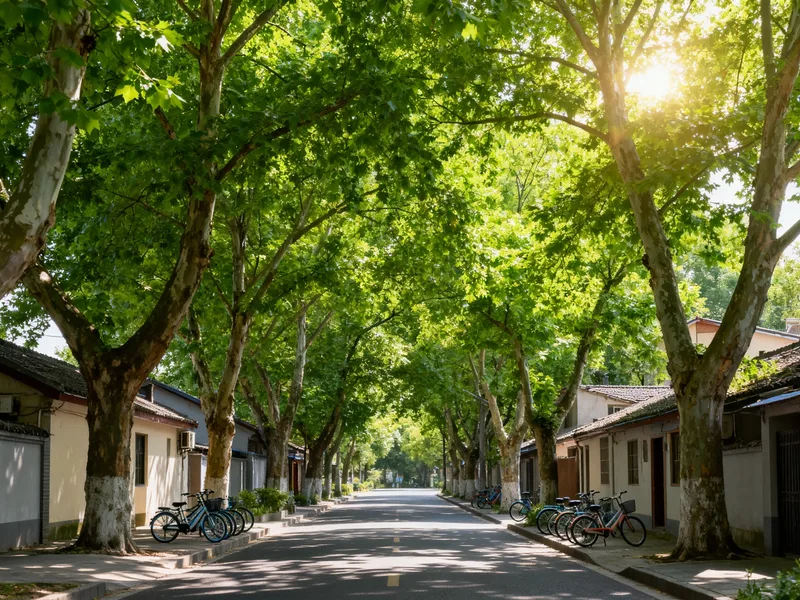
Change the season in a photo
A leafy summer street turned into the same street under fresh snow
Prompt the same street in winter, covered in fresh snow, overcast sky
Made with Seedream 4.5
Try this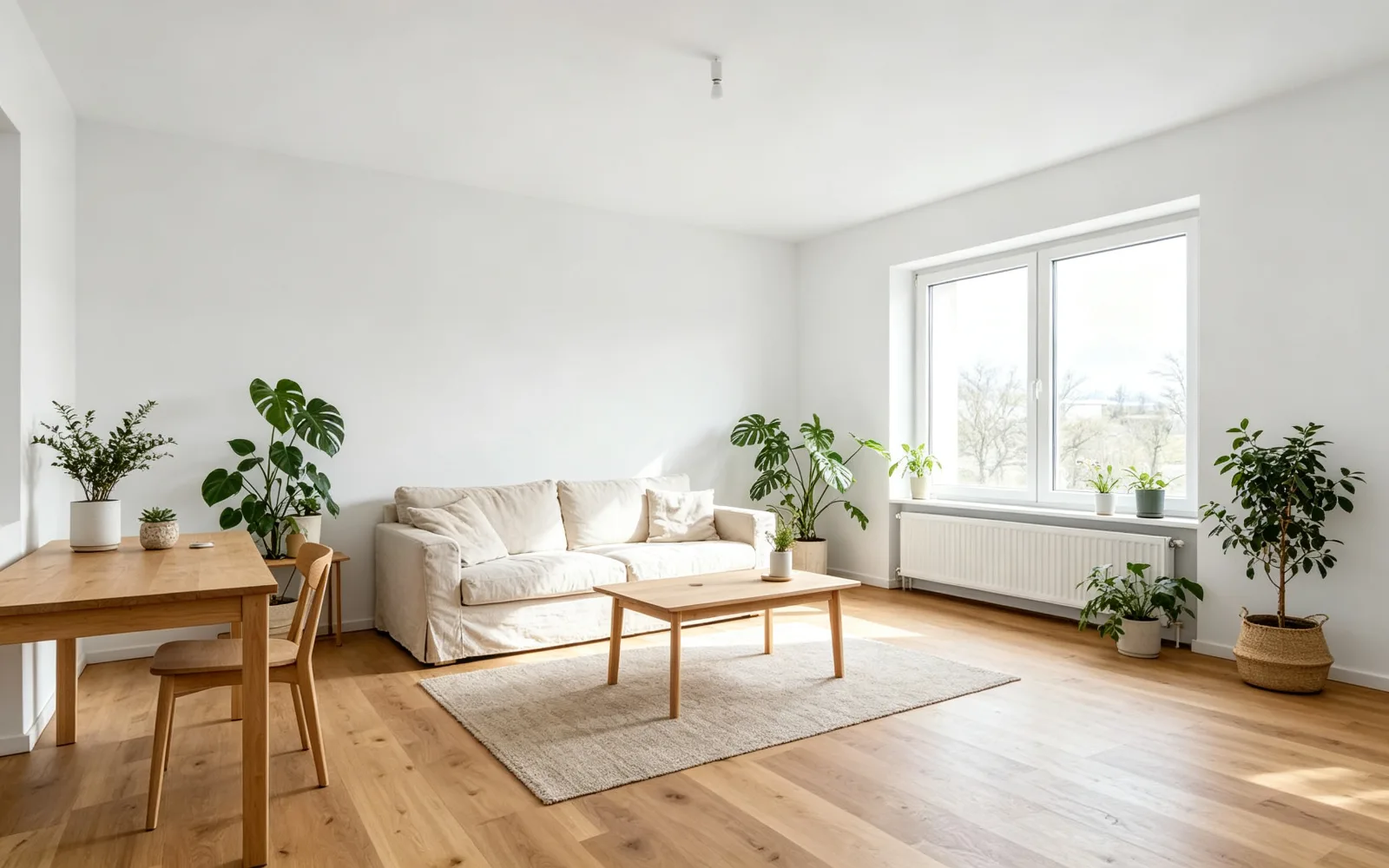 After
After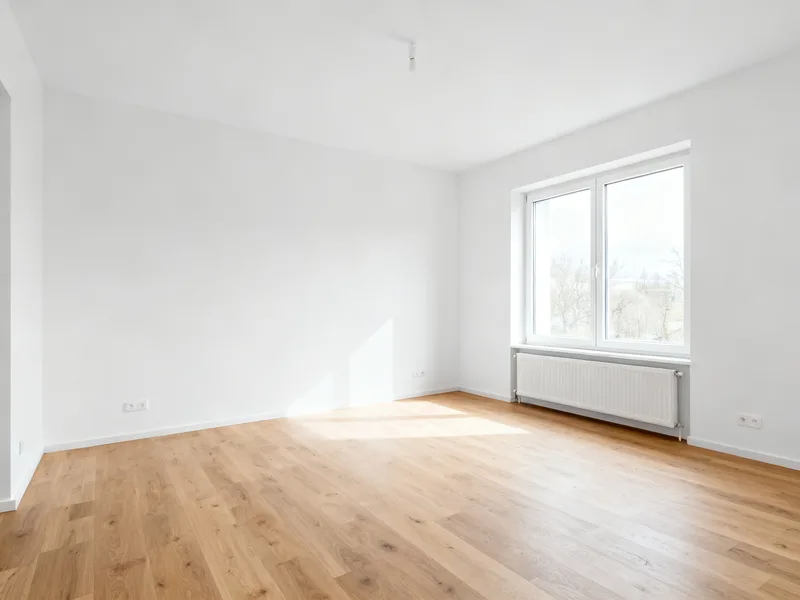
Redesign a room from a photo
An empty room furnished in Scandinavian style
Prompt furnish this room in Scandinavian style with a light wood table, linen sofa and plants
Made with Seedream 4.5
Try thisHow to use image to image AI
- 1
Add your reference images
Click the plus card, drag images onto it or paste them into the prompt box. Up to six images, 5 MB each, depending on the model. Uploading asks you to sign in.
- 2
Describe the result
A prompt is required. Say what to keep from the reference and what to change, for example "the same chair in green velvet in a bright living room".
- 3
Pick a model and size
Choose a model, an aspect ratio and a resolution. The cost in credits per image is shown next to the Generate button.
- 4
Generate and download
Click Generate. The result opens in a new conversation, where you can download it or keep refining it.
What image to image AI does
Text to image starts from a blank canvas. Image to image starts from your picture: the model reads the reference for its subject, shapes, colors and layout, then draws a new image that follows both the reference and your prompt.
The whole image is drawn again, so small details can shift. When you only need to change one area and keep every other pixel, use AI inpainting instead. To take something out, use the object remover.
Writing prompts for image to image
Name what should stay, then describe the change. Short, concrete prompts give more predictable results than long lists of adjectives:
- "The same bottle on a marble bathroom counter, morning light"
- "This living room at night with warm lamps switched on"
- "Turn this photo into a flat vector illustration with bold colors"
- "The same person in a navy business suit, studio background"
- "This sketch as a clean 3D render in soft pastel colors"
Combining several reference images
With more than one reference you can mix them: a product from one photo and a setting from another, or a person and an outfit. Type @ in the prompt to mention a specific reference, so the model knows which image each part of the prompt refers to.
The number of references depends on the model, up to six. When the limit is reached, the plus card disappears. Models that do not accept references show a notice instead.
Choosing a model
Models differ in how closely they follow the reference, how they handle text in the image and which sizes they offer. The examples on this page were made with Seedream 4.5; the model is named under each one.
Models marked with a lock need a higher plan. The credits per image change with the model and resolution, and the current figure is always shown before you generate.