AI photo enhancer: sharpen blurry and low-quality photos
Improve image quality in one pass. The enhancer redraws the edges and fine texture that blur, compression and small file sizes have worn away, and returns the photo at 4K or 8K.
- Free daily credits
- Nothing to install
Low-quality photos enhanced
Drag the divider to see the before and after.
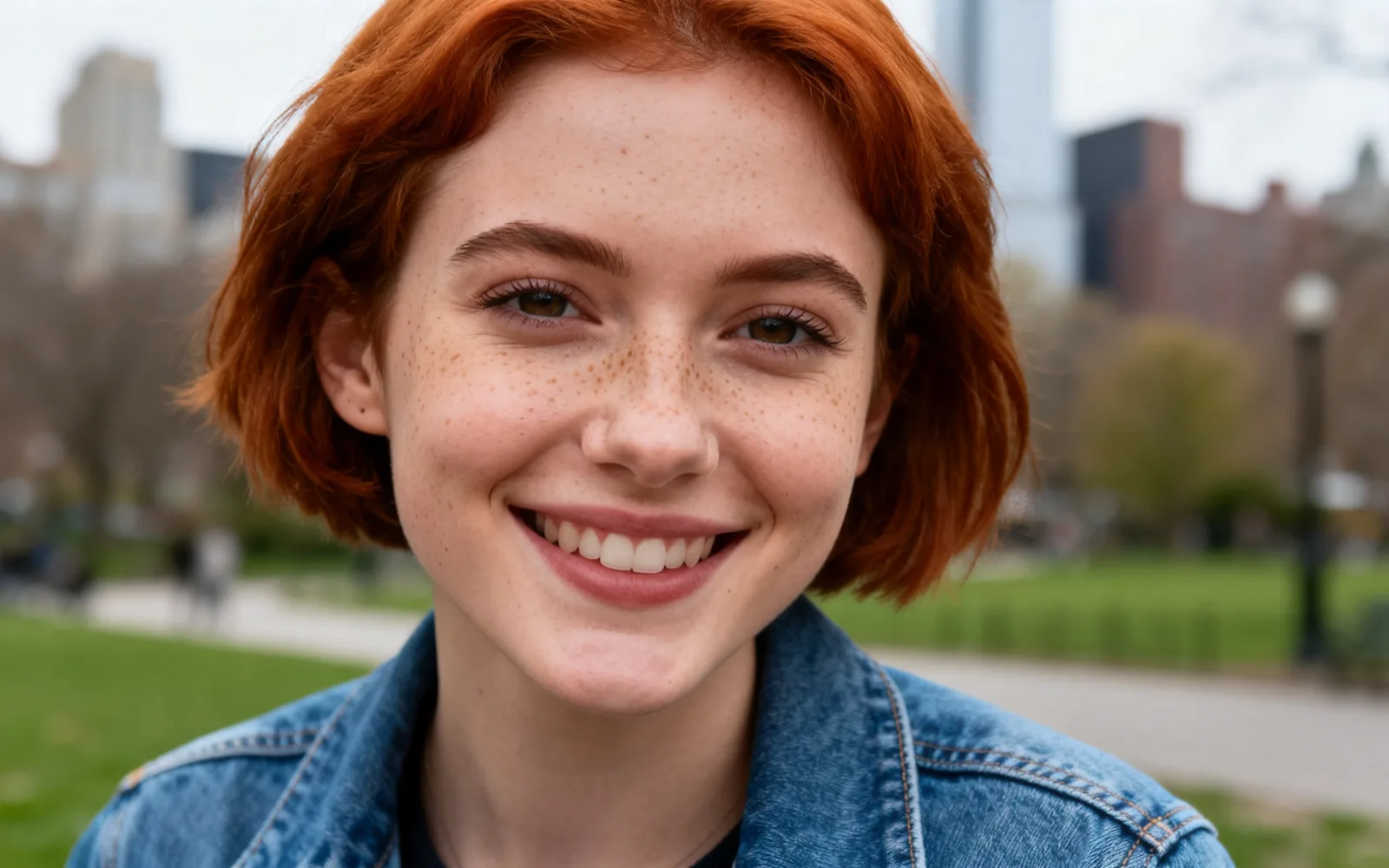
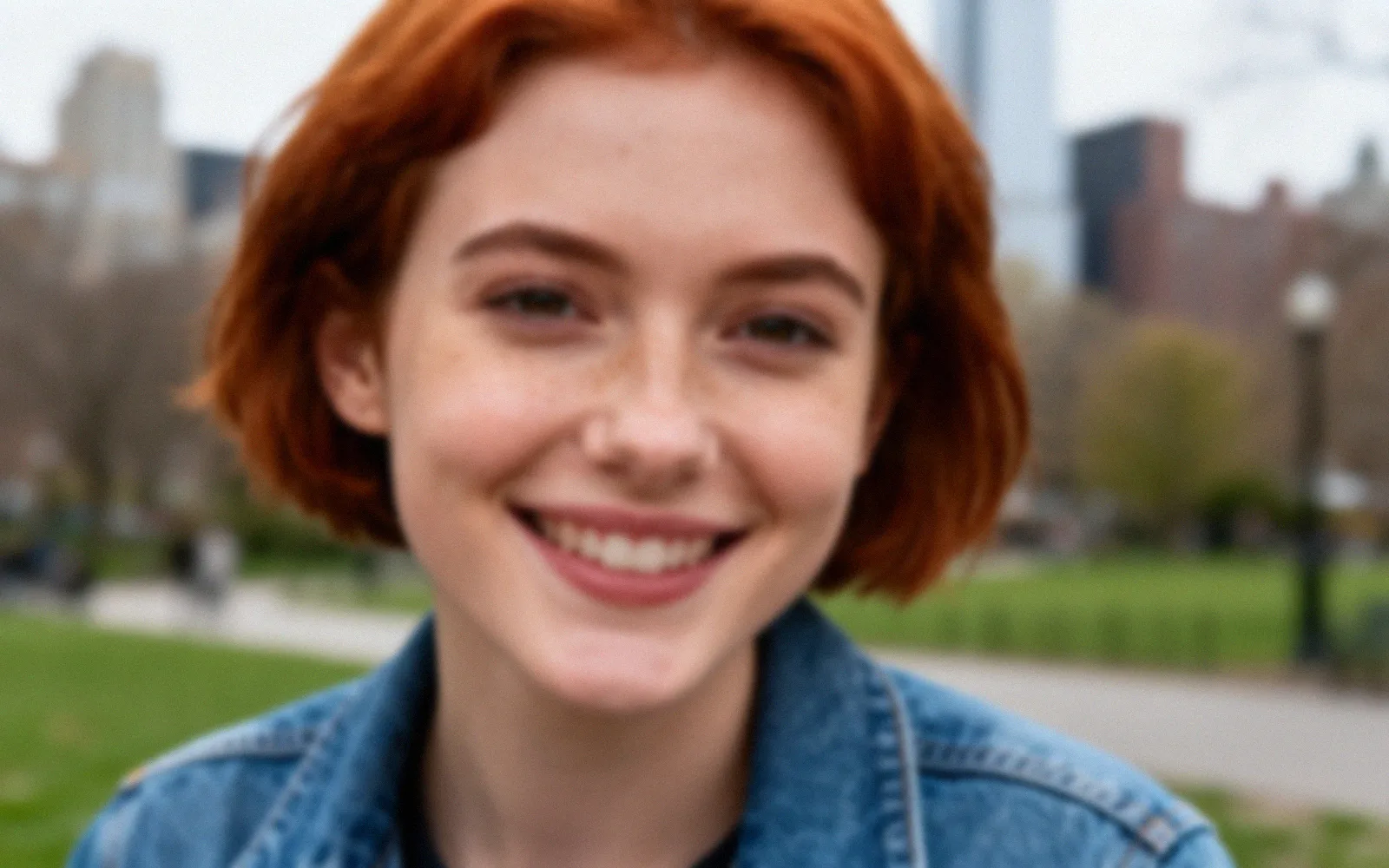
Fix a blurry portrait
A soft, slightly blurred portrait sharpened around the eyes and hair
Try this

Enhance a compressed image from a chat app
Blocky compression cleaned up in a landscape saved from a chat
Try this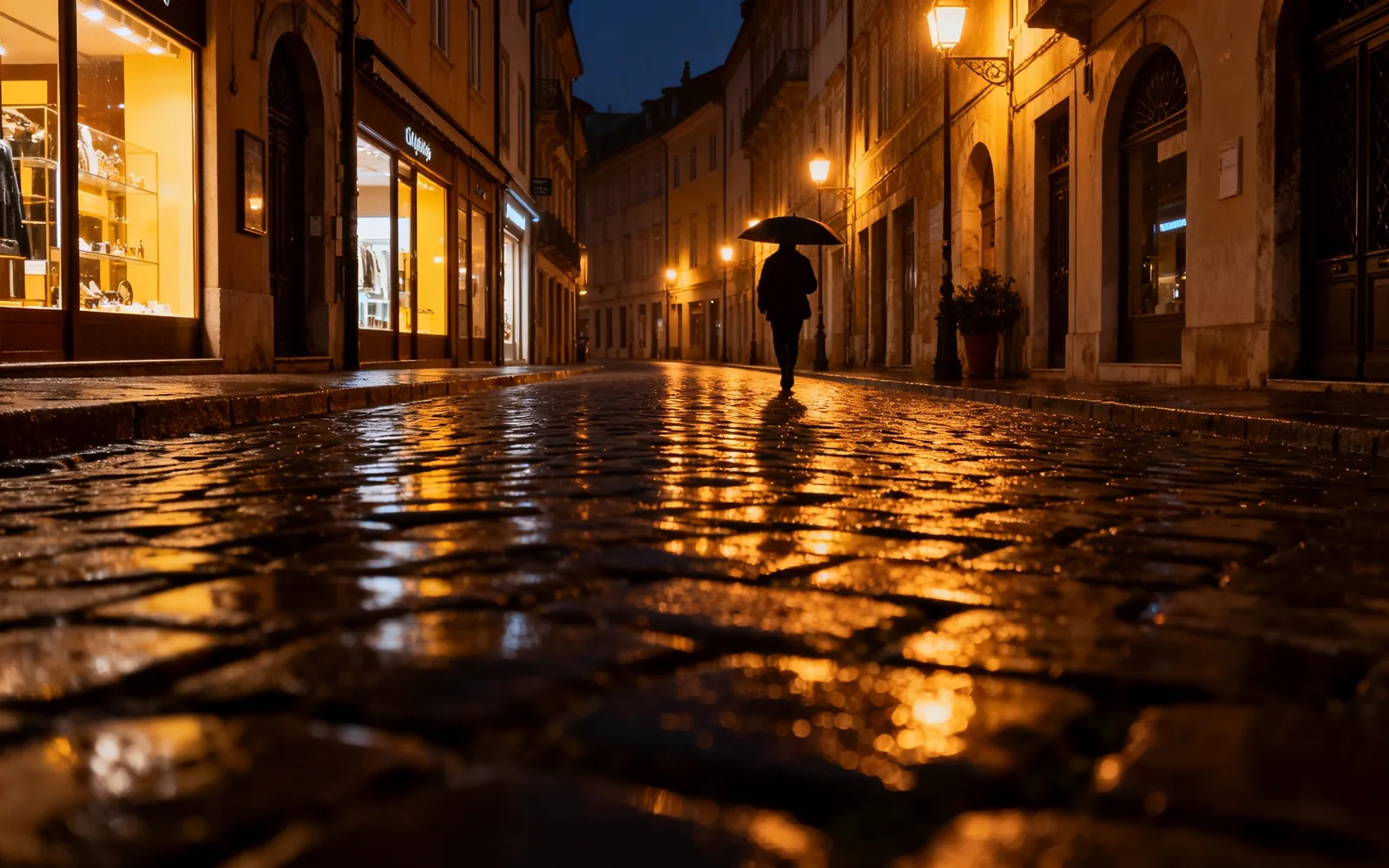
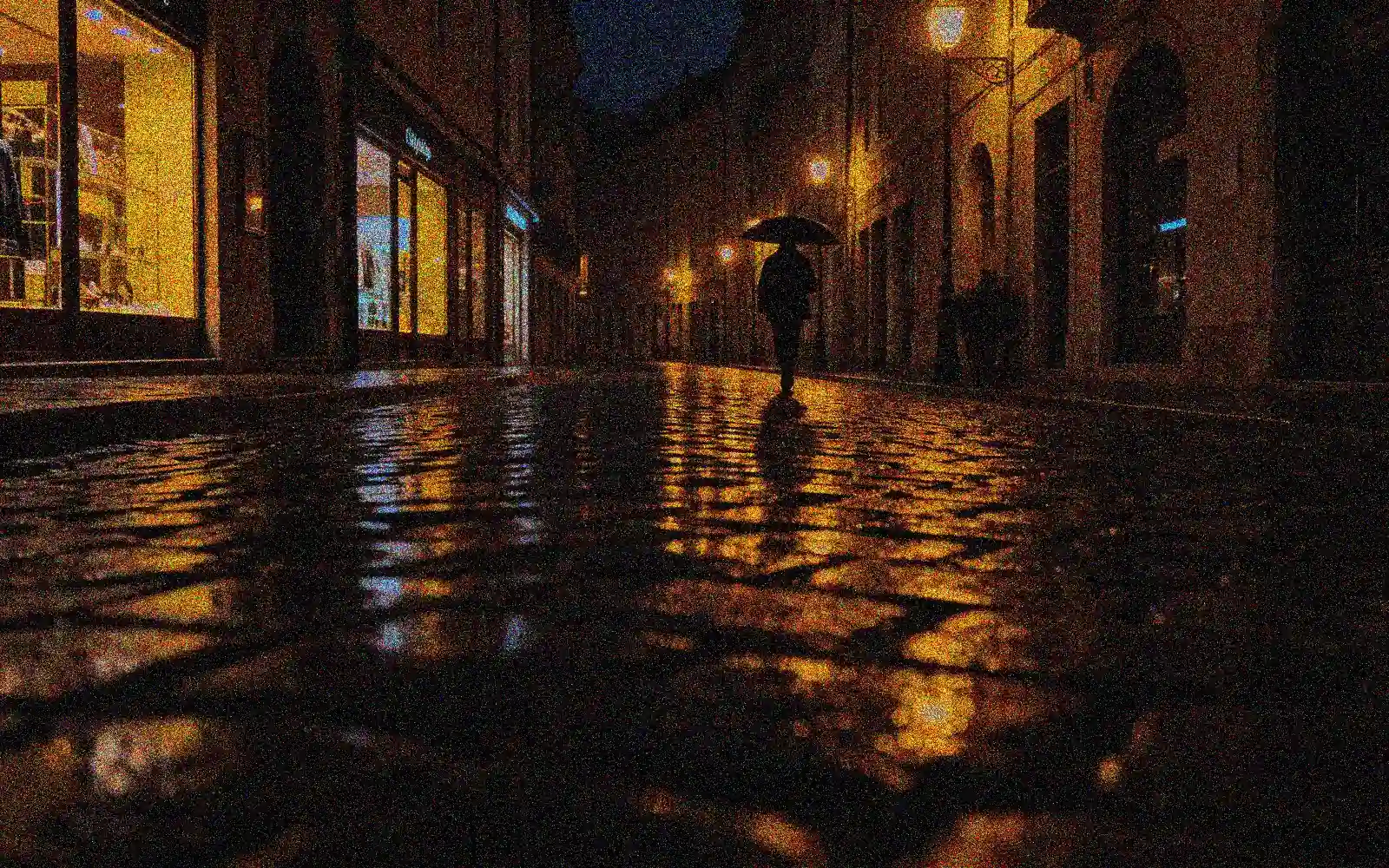
Clean up a grainy night photo
A grainy night street made cleaner and sharper
Try this

Enhance a small profile picture
A tiny profile photo enlarged with clear facial detail
Try thisHow to enhance a photo with AI
- 1
Upload the photo
Choose the image you want to improve, up to 5 MB and no more than 4,096 pixels on the long side.
- 2
Choose 4K or 8K
The enhanced photo is returned at the size you pick. 4K is enough for screens and social media; 8K suits large prints.
- 3
Keep the detail strength moderate
Start at the default of 50. For faces, go lower so that features stay true to the person; for landscapes you can go higher.
- 4
Compare and download
Drag the divider over the areas that mattered most, such as eyes or text, then download the result.
What the photo enhancer improves
The enhancer works on sharpness and detail. It is most useful for photos that look soft or broken up when you zoom in:
- Softness from a low resolution or from resizing.
- Blocky patches and smeared edges from heavy JPEG compression.
- Grain in low-light photos, which usually comes back cleaner.
- It does not change colors or exposure, and it does not retouch skin or faces.
Make a blurry picture clearer
Slight blur, the kind you notice only when you zoom in, responds well: eyelashes, hair, fabric and leaves come back crisp. The model redraws that detail at the new size; it is a careful estimate, not the original pixels.
A photo that is badly out of focus or smeared by movement improves less. The result is cleaner, but a shape that was never sharp in the file cannot be recovered exactly.
Photos saved from chats and social media
Messaging apps and social networks compress every image they send, and each re-share compresses it again. The enhancer smooths out the blocks and rebuilds edges, which is often the quickest way to rescue a picture that only exists in a chat.
If the person who sent it still has the original, ask for that file first. An original from the camera always holds more real detail than an enhanced copy.
Faces and fine detail
Faces that are only a few pixels wide have little to work from, so the model fills in more of them, and the result may look slightly different from the real person. Lower the detail strength for portraits and compare the face closely before you use the photo.