AI image extender: expand a photo beyond its edges
Extend a photo past its edges with AI-generated scenery that matches the original light and perspective. Change the aspect ratio without cropping anything away.
- Free daily credits
- Nothing to install
Photos extended past their edges
Watch the original photo grow outward into new scenery.
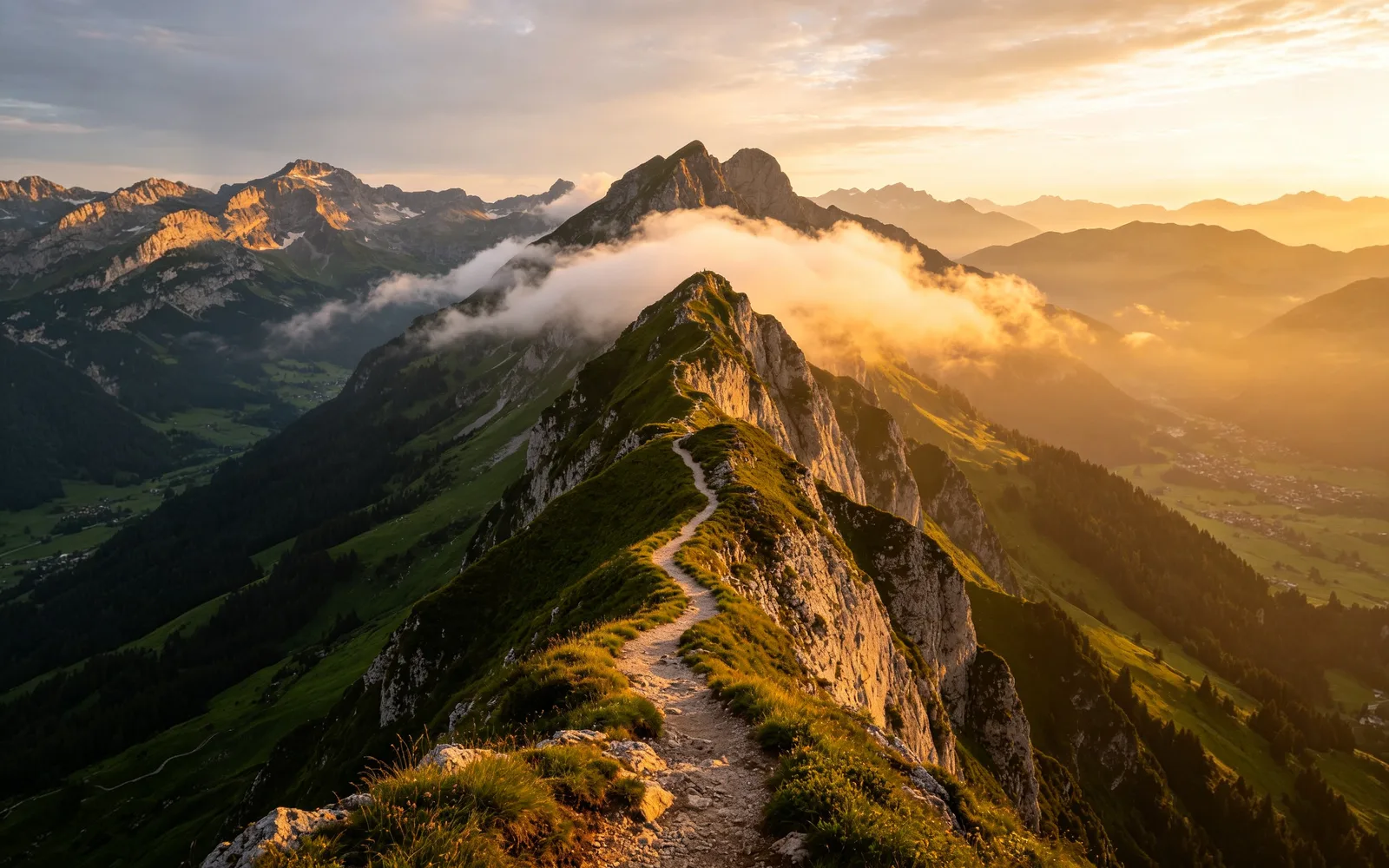
Widen a mountain photo into a panorama
A mountain shot grown sideways into a wider view of the range
Prompt more of the mountain range and valley
Try this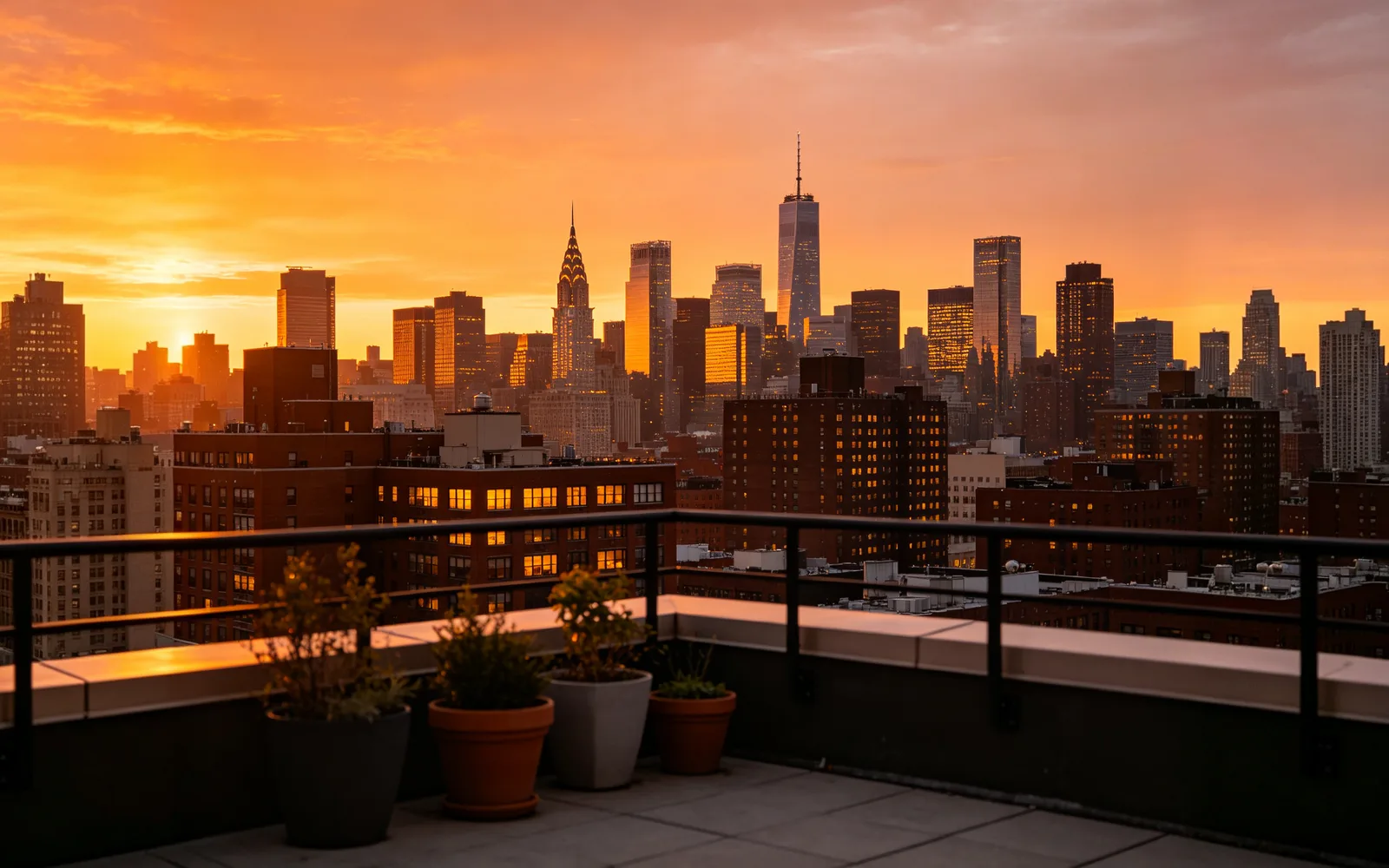
Extend a city skyline at sunset
A rooftop sunset extended into the rest of the skyline
Prompt the rest of the city skyline at sunset
Try this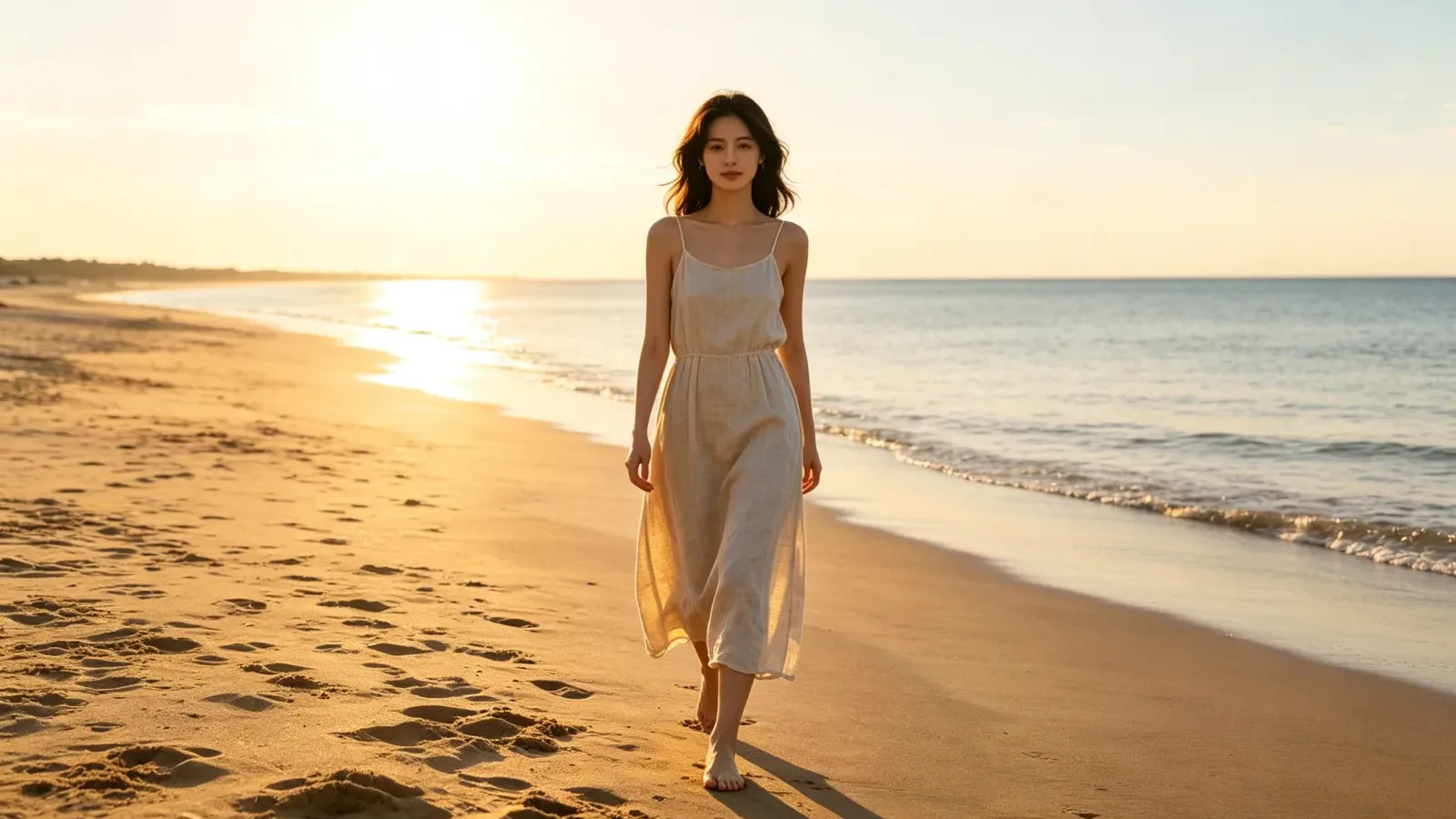
Turn a vertical photo into a 16:9 image
A vertical beach portrait extended into a wide frame
Prompt more of the sunlit beach and calm sea
Try this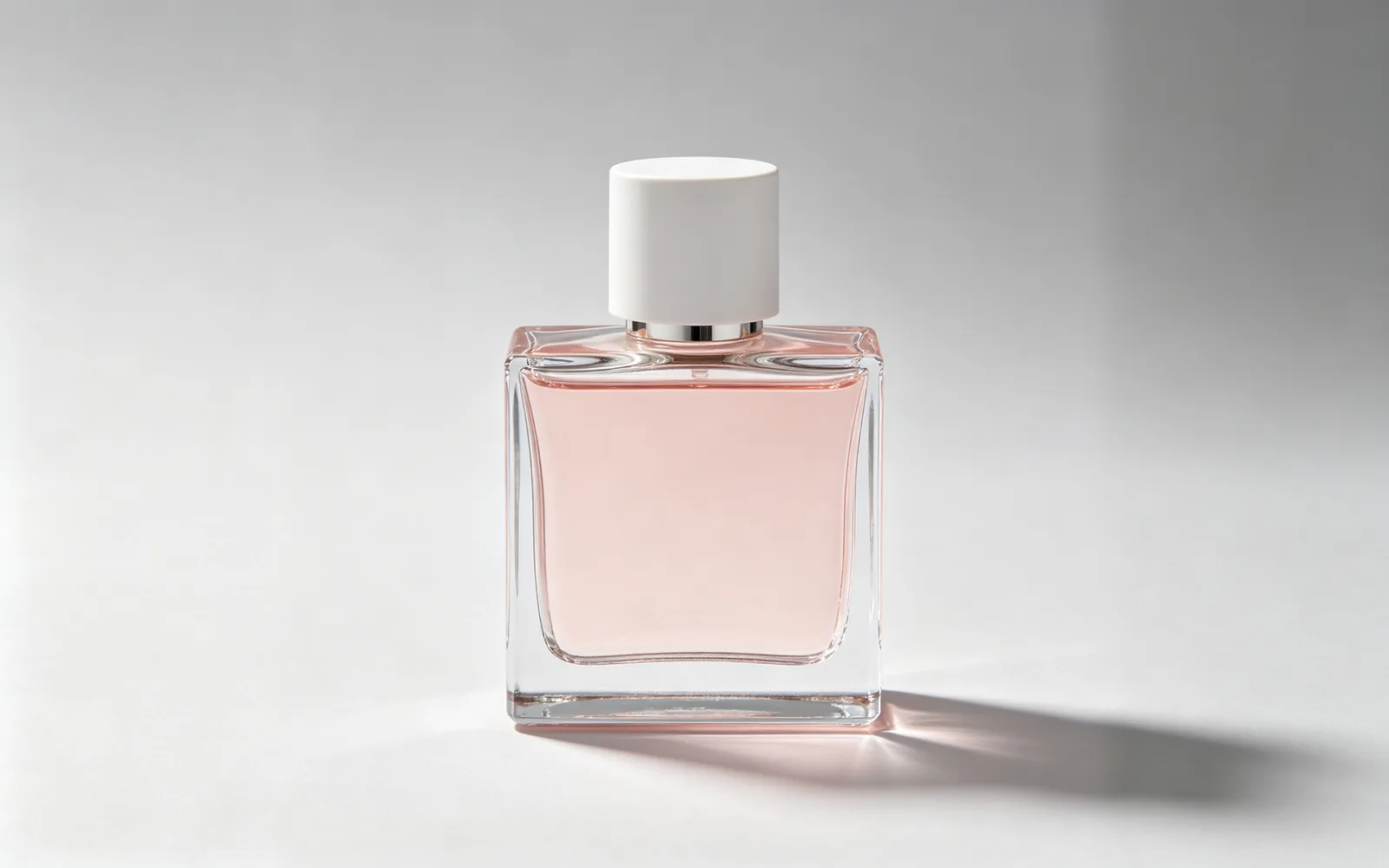
Extend a product photo for a banner
A square perfume shot extended onto a wide studio backdrop
Prompt plain light gray studio backdrop
Try thisHow to extend a photo with the AI image expander
- 1
Upload the photo
Choose an image or drop it onto the page. The preview shows your photo inside the larger frame it will grow into.
- 2
Choose the new size
Pick a scale of 1.5×, 2× or 3× to grow all four sides evenly, or pick a target ratio to make the photo wider or taller.
- 3
Describe the new space (optional)
Add a short description of what should fill the extended area, such as "more of the sandy beach and a calm sea". Leave it empty and the model continues the scene on its own.
- 4
Process and download
Click Process, drag the divider to see where the original photo sits in the result, and download it.
How to make an image bigger without stretching
Stretching a photo to a new shape distorts everything in it, and cropping it to that shape throws part of the picture away. The image extender does neither: it adds new scenery around the photo, so the frame gets larger while the original keeps its proportions.
This is also called uncropping or outpainting. It helps when a subject sits too close to the edge, when a shot needs empty space for text, or when a vertical photo has to fill a horizontal frame.
Change the aspect ratio of a photo without cropping
The target ratios are 1:1, 3:4, 4:3 and 16:9. Use 1:1 for square social media posts, 16:9 for video thumbnails, slides and desktop wallpapers, and 3:4 or 4:3 for print sizes such as 6 × 8 or 9 × 12 inches.
Only the ratios your photo can reach are shown. Each side can grow by at most the length of that edge, so a tall phone photo cannot become 16:9 in one run. For a bigger change, download the result, upload it again and extend it a second time.
How large the extended image can be
The extended image is at most 4,096 pixels on its long side. When the new frame would be larger, the whole picture, original included, is scaled down to fit. A large photo extended at 3× therefore has fewer pixels in the original area than before.
If you need a larger file, download the result and run it through the AI image upscaler.
Photos that extend well
The new area is drawn from what the model sees near the edges, so the edges of your photo matter most.
- Landscapes, sky, sea, fields and forests, where the new area can simply continue the scene.
- Plain walls, studio backdrops and rooms with simple, repeating structure.
- Harder: a person cut off by the edge of the frame, because the model has to invent the rest of the body.
- Harder: text, signs and straight architectural lines that run out of the frame, which may not continue exactly.